

Comments allow your website’s visitors to have a discussion with you and each other. You can turn comments on or off by following the steps in this guide.
In this guide
Video Transcript
I wanted to take a look at basic functionality around comments. So comments on your site allow other users or readers to basically talk to you about the content that you’re creating on your site.
There’s a section within my home on that left sidebar that you can jump to. And so there’s functionality built in you can enable and manage, And then you’re also gonna have kind of ability to moderate because the internet’s a crazy place. Sometimes people just comment anywhere they can with links trying to drive traffic to different places. They’ll comment with things that are totally irrelevant. So we have some spam protection built in for that, which is nice and you don’t have to worry too much about that, but that means that you also need to kind of go in here and check on what comments are there and which are valid so you can approve them respond to them and all that good stuff.
So let’s go into… actually, let’s first go into settings and let’s check out there’s a discussion section in here that’ll give you some options.
So I’m gonna click on discussion again and so this is gonna give you a lot of the options to enable comments and control how they work on there. So notify any blogs that you link from your articles so it’ll send somebody else if you put a link to somebody else’s content it’ll let them know that you link to them. That’s a great way to get them to share your content to their audience and a great way to help build your following. Link notifications from other blogs, meaning if other people are linking to your content, you can get a notification about it and do the same thing. That’s a great way to build a community with other content creators and not just your readers. That’ll help all of you kind of build a symbiotic community of readers that maybe are overlapping in topics that you cover, even though they’re slightly different. They kind of are interested in both, or multiple kind of places where they might overlap.
And then you can of course allow people to post comments on your new content. You can let visitors use a .com, Twitter, Facebook, or Google account to comment. I should probably actually have that enabled. It’s fine with me.
And then there’s all these other settings you can require.
So the comment author needs to fill out their name and email, that helps prevent some of the spam.
They must be registered and logged into your site to comment. I don’t have that one enabled because I don’t think they should have to create a whole account just to enjoy the content and engage with it.
You can close out comments that you haven’t responded to or approved after a certain amount of time.
So there’s a bunch of settings in here to kind of control that commenting experience. We don’t need to go through all of them one by one. What I really wanted to make sure is you knew that those are there.
And then we can jump over to the actual comments section of the site. And this is just where you’re going to see essentially all the comments, which are pending and need approval, which have been approved.
So if I had gone through and said, yeah, this is fine, it would be live, that’s fine, which were caught as spam and marked as spam, and then which ones you kind of deleted or threw away already.
So you get a full history to manage all that in there. And if you’re actually publishing content on your site, which I haven’t been, and you’re actively engaging and sharing your site, you’ll get a lot more of this happening.
Sometimes it happens through the reader. If you go to wordpress.com/read, you can see a bunch of our other kind of customer sites and content as it comes through, and even subscribe to them there and comment from there.
Sometimes it just happens as people find your site and your content as you share it across social media or if they find it on a search engine.
So people can come from anywhere and discover it, comment it, and start a discussion. It’s a great way to kind of engage and build loyalty with your audience and connect with the people on the other side of it.
To turn commenting on or off across your website’s posts, follow these steps:
- Visit your site’s dashboard.
- Navigate to Settings → Discussion.
- Locate the “Default Article Settings” section (or, “Default post settings” if using WP-Admin).
- Toggle the option “Allow people to post comments on new articles” on (to enable comments) or off (to disable comments).
This will enable comments for all future posts you publish. If you previously published posts while comments were turned off, and now wish to enable comments on those posts, you can activate comments on specific posts by following the steps in the next section.
You can require visitors to log in to comment, or you can allow anonymous comments. You can choose which fields are required and if you want to approve comments before making them public. See the Discussion Settings guide to learn more about all the available settings to control your website’s comments.
To enable or disable comments on a specific post (or page) you’ve already published, follow these steps:
- Visit your site’s dashboard.
- Navigate to Posts or Pages.
- Click on the title of the post or page you want to enable or disable comments on.
- Open the post/page settings in the sidebar on the right.
If you do not see the sidebar on the right, click the Settings icon in the top right corner to bring up the settings. This icon looks like a square with two uneven columns:

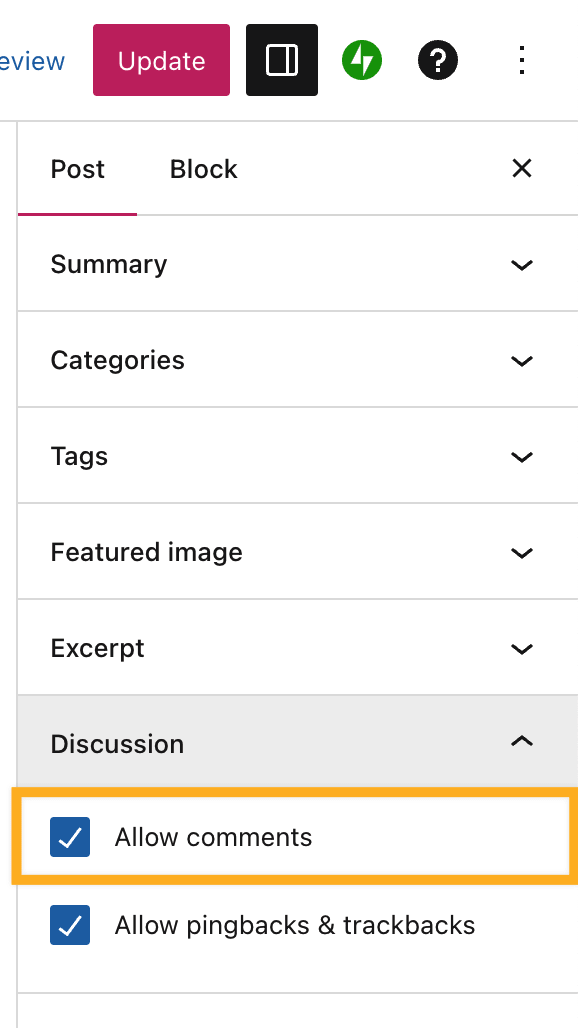
- Scroll down to the Discussion section of the page/post settings.
- Tick the box next to “Allow Comments” to enable comments or untick the box to disable comments:
- Disable pingbacks, if desired.
- Click Update to save your changes.
If you want to enable or disable comments for a large group of posts or pages, you can do so in classic view with these directions for Bulk Editing.
To view, reply to, delete, and manage spam comments, visit our guide to Manage Your Site’s Comments.


