

While you can use your WordPress.com domain with any platform by updating the name servers, you can transfer your domain to another external provider if you wish. This guide explains how to transfer a domain registered with WordPress.com to an external provider, known as a registrar. If you wish to transfer a domain from another provider to WordPress.com, visit the Transfer a Domain to WordPress.com guide instead.
In this guide
WordPress.com is an all-in-one solution for web and domain hosting, where you can build any website imaginable with superior performance and affordable pricing. Visit the Choose a Host guide for help in deciding which company to partner with for your website.
Transferring a domain to an external provider can take five to seven days. If you would like your domain to start working with your new provider sooner, you can change the name servers to the new host before starting the transfer to the new host. Once the transfer to a new provider is initiated, name servers, DNS records, and domain contact details can only be edited when the transfer is finished.
As per industry-wide domain regulations, it must be at least 60 days since the domain was registered or last transferred before you can transfer it to another provider. If it has been fewer than 60 days, you can change the name servers to connect your domain to another service until it is eligible for transfer to that service.
⚠️
Do not cancel or delete your domain at any point in the transfer process. If you cancel the domain, you will immediately cease to be the owner and the transfer will fail. Once the transfer to the new provider completes, the domain will automatically be removed from your WordPress.com account.
To transfer a domain to another provider, you need to unlock the domain, disable privacy, and obtain a transfer authorization code. Take the following steps to begin to transfer your domain to an external registrar:
- Visit your site’s dashboard.
- Navigate to Upgrades → Domains (or Hosting → Domains if using WP-Admin) to find a list of all domains associated with your site.
- Click on the registered domain that you wish to transfer.
- Click on the “Transfer” button on the right side of the screen.
- If you don’t have this option, ensure the domain is owned by you and not by another admin on the site. Only the owner can transfer their domain.
- Under the “Transfer to another registrar” section, click on the toggle option for “Transfer lock on” to disable the transfer lock:
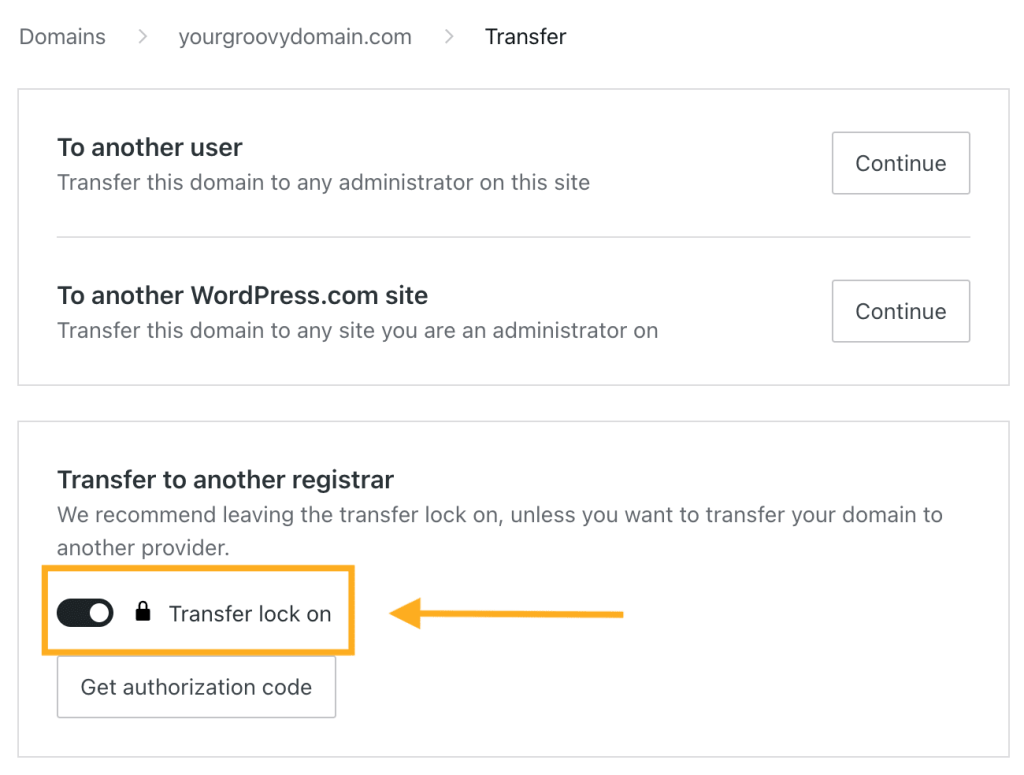
- Click the “Get authorization code” button. This code may be referred to as an “auth code” or “EPP code” by your new registrar.
- A banner message at the top of the screen confirms that the transfer code has been sent to your email. Please allow up to 15 minutes for the email with the code to arrive.
- The code is sent to the email address you have provided in the domain contact details, which may differ from the email address you use for your WordPress.com account.
- If you no longer have access to this email address, follow these instructions to update the contact information for your domain, then re-send yourself the code.
⚠️
Certain country-specific domain extensions require a longer wait time to receive your code. Codes for
.com.brand.net.brdomains (Brazil) are sent within 72 hours. Codes for.nldomains (The Netherlands) are typically sent within a week.
Once you have the authorization code, visit your new provider’s website to provide them with the code and start the transfer to their platform.
We’ve listed instructions from popular domain providers below.
Instructions for common domain providers (click to reveal)
Once the new registrar accepts the authorization code, you cannot make any changes to the domain, such as editing DNS records. If you need to make any changes, cancel the transfer, make the changes, and then restart the transfer to the new provider.
Once you confirm the transfer to the new provider, most TLDs have a five-day waiting period until the transfer processes and your domain is moved to your new provider. Shortly after you initiate the transfer to the new host, we will send an email to the registrant’s email address with a link to confirm or cancel the transfer. By confirming the outgoing transfer, the transfer to the new provider will be processed sooner than 5 days (and often within the same day.)
If you wish to stop the domain from transferring to a new host, check for the email sent to the registrant’s email address which will include an option to cancel the transfer. You may also cancel the transfer via your new provider’s website or by contacting their support team.
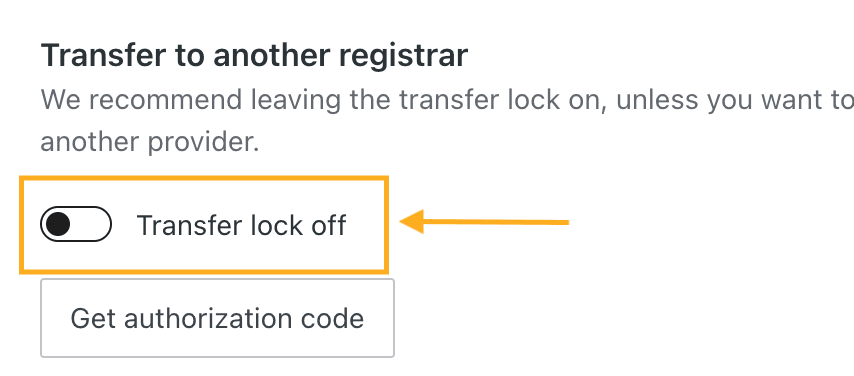
In addition, prevent an unwanted outgoing transfers by re-locking the domain you unlocked in Step 1:
Most domain names registered at WordPress.com have GDPR protection, which means registrant contact information is not visible publicly, regardless of whether or not the domain has Privacy Protection in place. For these domains, disabling privacy will not result in contact info being publicly published.
For some domains, contact information for non-EU owners will be publicly accessible with privacy disabled.
You can see our Register a domain support guide for more details on GDPR and private registration, including information on how your domain’s registrant contact information will be presented in public WHOIS.


