When you subscribe to a blog on WordPress.com, you can follow along with that blog’s posts via email and the Reader. This guide will show you how to add a blog to your subscriptions.
In this guide
There are several ways to subscribe to a WordPress.com-hosted blog and keep up with its posts via Reader and email notifications.
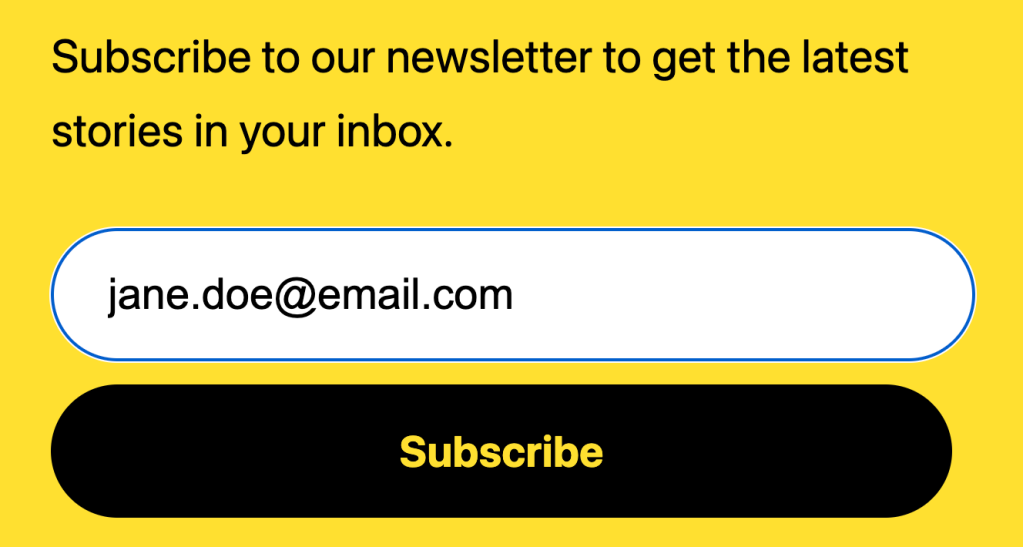
You can subscribe to a blog via a subscription form if the site owner has added one. The blog owner can design their subscription button however they like. Here is an example of a subscription box:
Most WordPress.com sites include an action bar that you can use to subscribe with using the following steps:
- Visit the homepage of the website you wish to follow.
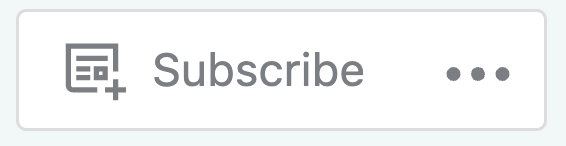
- Click the “Subscribe” button that appears in the bottom right-hand corner:
- The text of the “Subscribe” button will change to “Subscribed” and a popup will appear for you to select how you would like to be notified of new posts:
- Notify me of new posts: Receive new post notifications via the notifications area in your WordPress.com account and via the Jetpack mobile app.
- Email me new posts: Receive emails for new posts as soon as they are published or on a daily or weekly schedule.
- Email me new comments: Also receive emails for new comments left on the blog’s posts.
When subscribing to a blog on WordPress.com, your email address is visible to the website owner.

If you are not logged into a WordPress.com account, clicking the “Subscribe” button will ask for the email address you want to subscribe with instead.
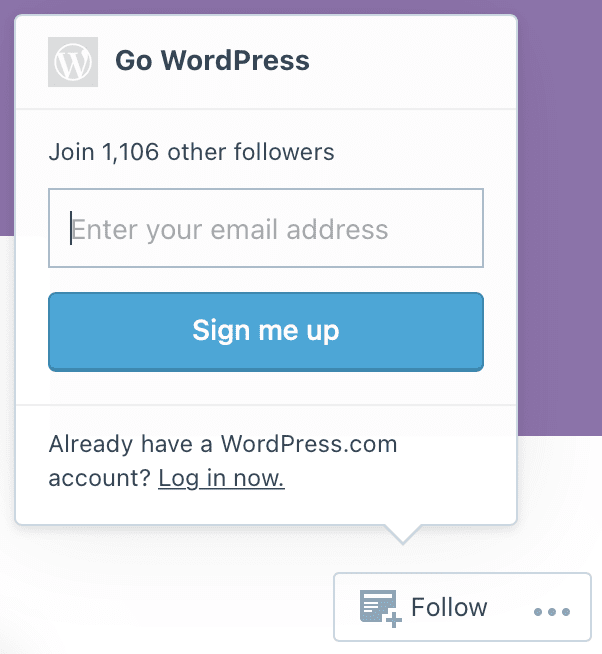
After entering your email address, click on the confirmation link in the email that we sent you to confirm your subscription request and start receiving emails. If your email address isn’t already associated with a WordPress.com account, clicking this confirmation link will set you up with one, which will be used to manage your subscriptions.
To add a blog from Tumblr, Blogger, or any other service to your Reader:
- Click on the Reader at https://wordpress.com/read.
- On the right side of the screen, click the “Manage” link next to your existing Subscriptions:
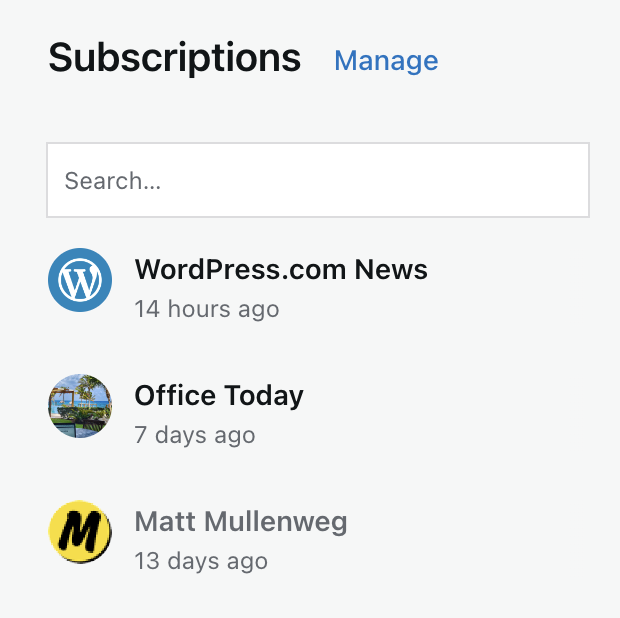
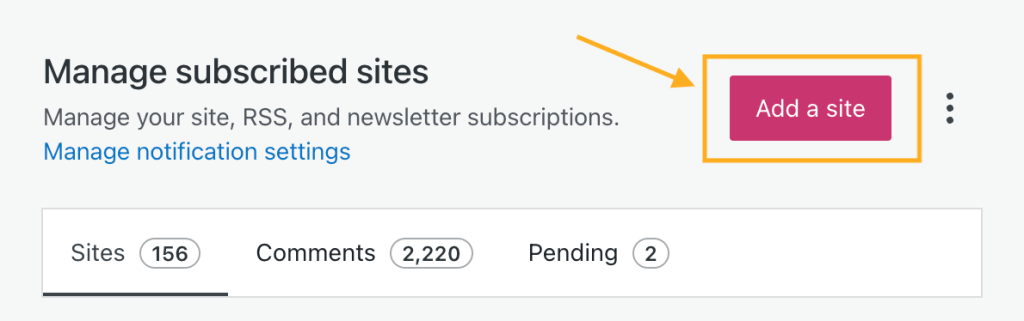
- Click the “Add a site” button in the upper left corner:
- In the text box, enter the URL of the site or an or RSS feed link:
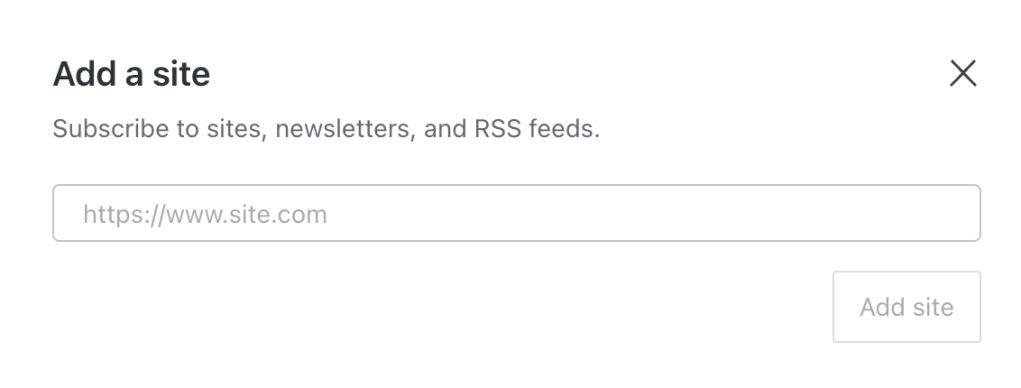
- Click the “Add site” button.
Future posts published on that blog will appear in your Reader.
If you have an OPML file from another feed aggregator service, you can use it to import several subscriptions to Reader at once.
- Click on the Reader at https://wordpress.com/read.
- On the right side of the screen, click the “Manage” link next to your existing Subscriptions.
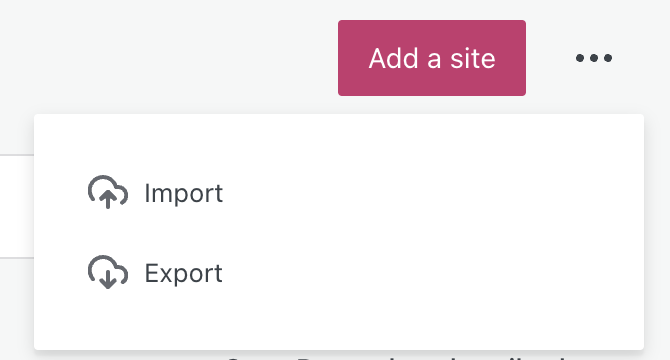
- Click the ellipses (three dots) next to the “Add a site” button in the upper right corner.
- Select the “Import” option:
- Select the OPML file from your computer’s file picker to import the subscriptions contained in that file.
You can also export your blog subscriptions from Reader to another service using the Export option.
To adjust the emails you receive for all sites you have subscribed to in Reader, visit our Notification Settings guide.
To change your email preferences for specific blogs only:
- Click on Reader in the WordPress.com toolbar.
- On the right side of the screen, click the “Manage” link next to your existing Subscriptions.
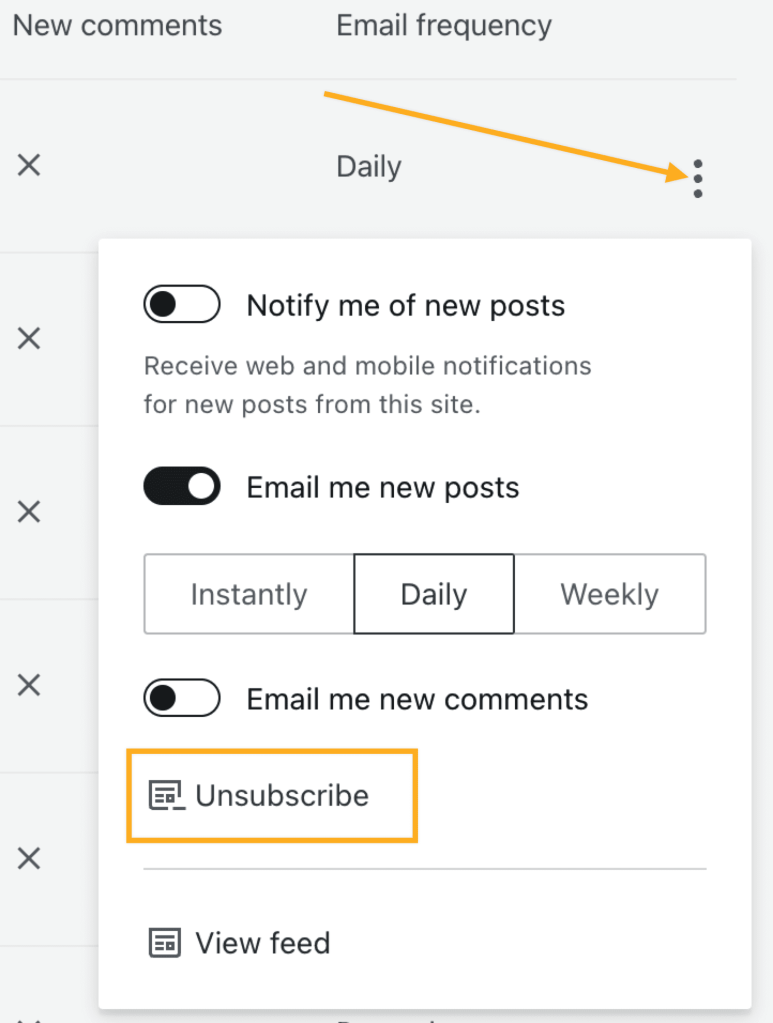
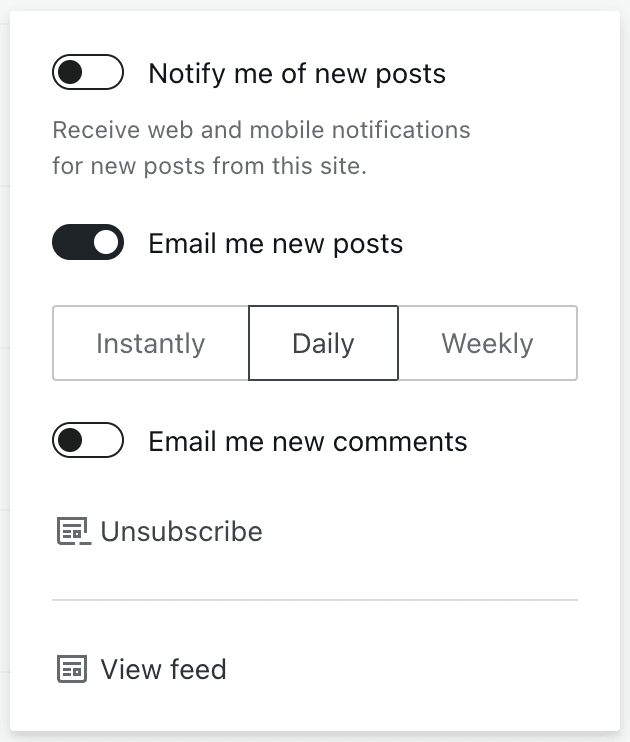
- Click the three dots next to the title of a specific blog you’re subscribed to and choose from the following options:
- Notify me of new posts (for web and mobile notifications.)
- Email me new posts (set the frequency to Instantly, Daily, or Weekly.)
- Email me new comments on the blog.
- Unsubscribe.
- View feed.
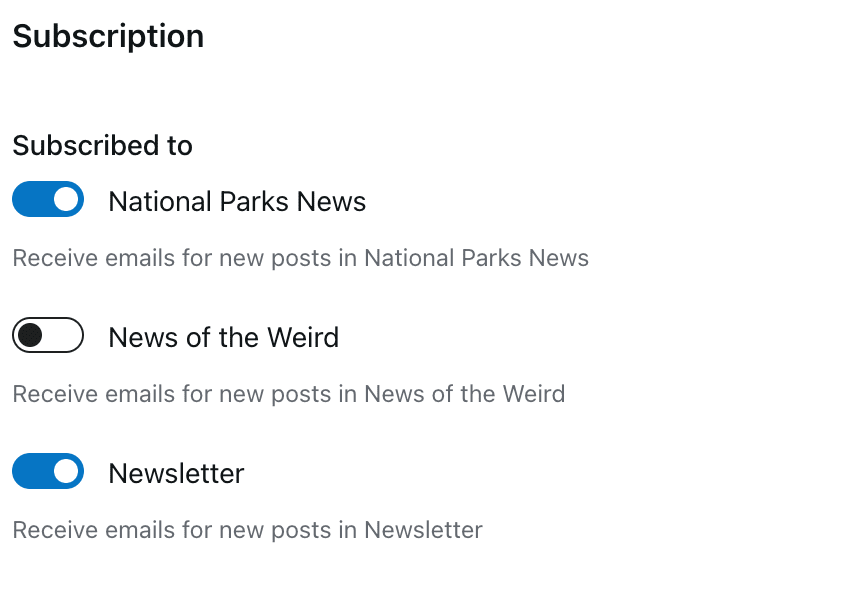
If you have subscribed to a blog that uses newsletter categories, you can manage which categories you are subscribed to.
- Click on Reader in the WordPress.com toolbar.
- On the right side of the screen, click the “Manage” link next to your existing Subscriptions.
- Click the title of the blog you want to manage categories for.
- Toggle the button next to the categories the blog offers.
Your settings will be updated automatically.
To stop following a blog’s updates, follow these steps:
- Click on the Reader at https://wordpress.com/read.
- On the right side of the screen, click the “Manage” link next to your existing Subscriptions.
- Click the three dots next to the title of a specific blog you’re subscribed to.
- Choose “Unsubscribe“.
If you do not have a WordPress.com account, visit the Subscription Management page and click the “Unsubscribe” link next to the blog title. Changes to these settings will be immediate.