The Like button is an easy way to show appreciation for a piece of content. This guide will explain how to like posts, view likes on a post, and turn the Like button on or off for your website.
In this guide
You can display or hide the Like button on your site. If your site uses a block theme, you can use the Like block. On classic themes, you can show or hide Likes with a setting.
Use the Like block to insert a Like button anywhere on your site. Most commonly, it is used in the Single Posts template to include a Like button on all the site’s blog posts.
To add the Like block, click the + Block Inserter icon and search for “like”. Click to add the Like block to any template, post, or page.
For more information, visit our detailed instructions on adding blocks.
When you first add the block, it will show you example profiles for you to see how likes appear once your content receives some likes. These sample likes will not appear publicly on your site.
When you click on the Like block, a toolbar of options will appear above or below it:
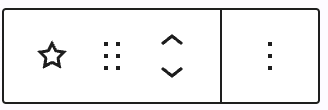
The Like block has the following options in its toolbar:
- Change block type.
- Drag the block.
- Move the block up or down.
- More options.
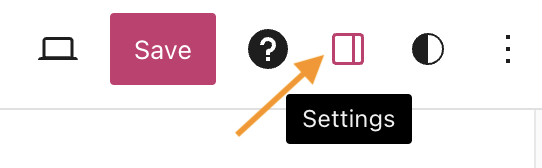
When you select a block, you will find additional block settings in the right sidebar. If you do not see the sidebar, you may need to click the Settings icon in the top-right corner to bring up the settings. This icon looks like a square with two uneven columns:
The Like block includes a setting to show the reblog button next to the Like button. Please note that reblogs are not supported on plugin-enabled sites. To provide similar functionality, you can use the AddToAny Share Buttons plugin to add a WordPress sharing button.
The Like block also included advanced settings.

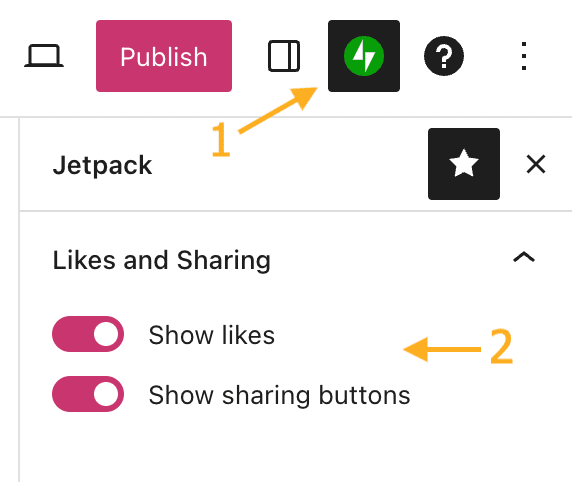
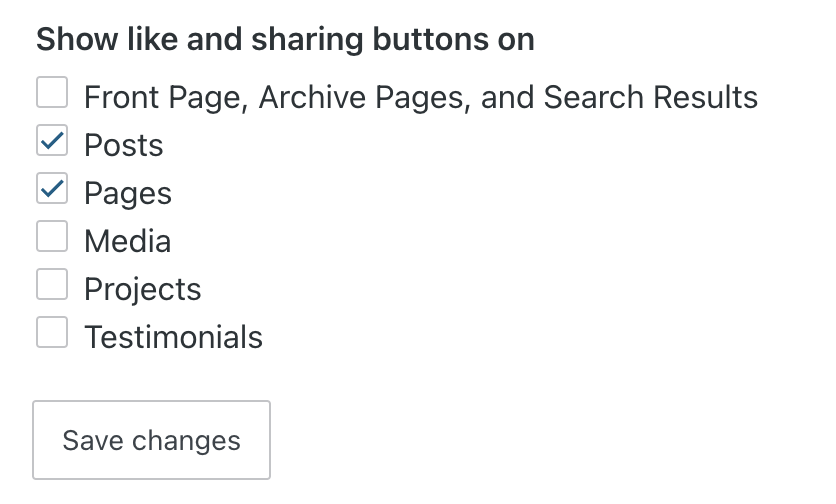
The following sections describe how to use the Like button on any WordPress site that has it enabled.
If a post or page has likes available, the Like button will typically appear at the bottom of the post next to any sharing buttons. As long as the visitor is logged into a WordPress.com account, they can use the Like button.
Click the Like button to like the post:
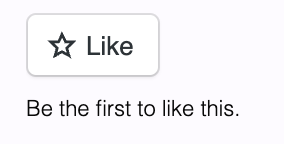
After clicking the Like button, the text of the button will change to “Liked” and your profile picture will appear next to it:
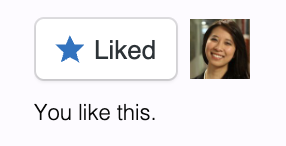
Your profile picture will be a clickable link to your Gravatar profile.
If you need to remove the Like from a post (i.e. “unlike” the post), click the Like button again once.
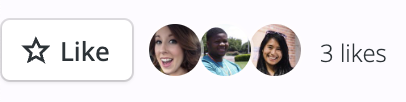
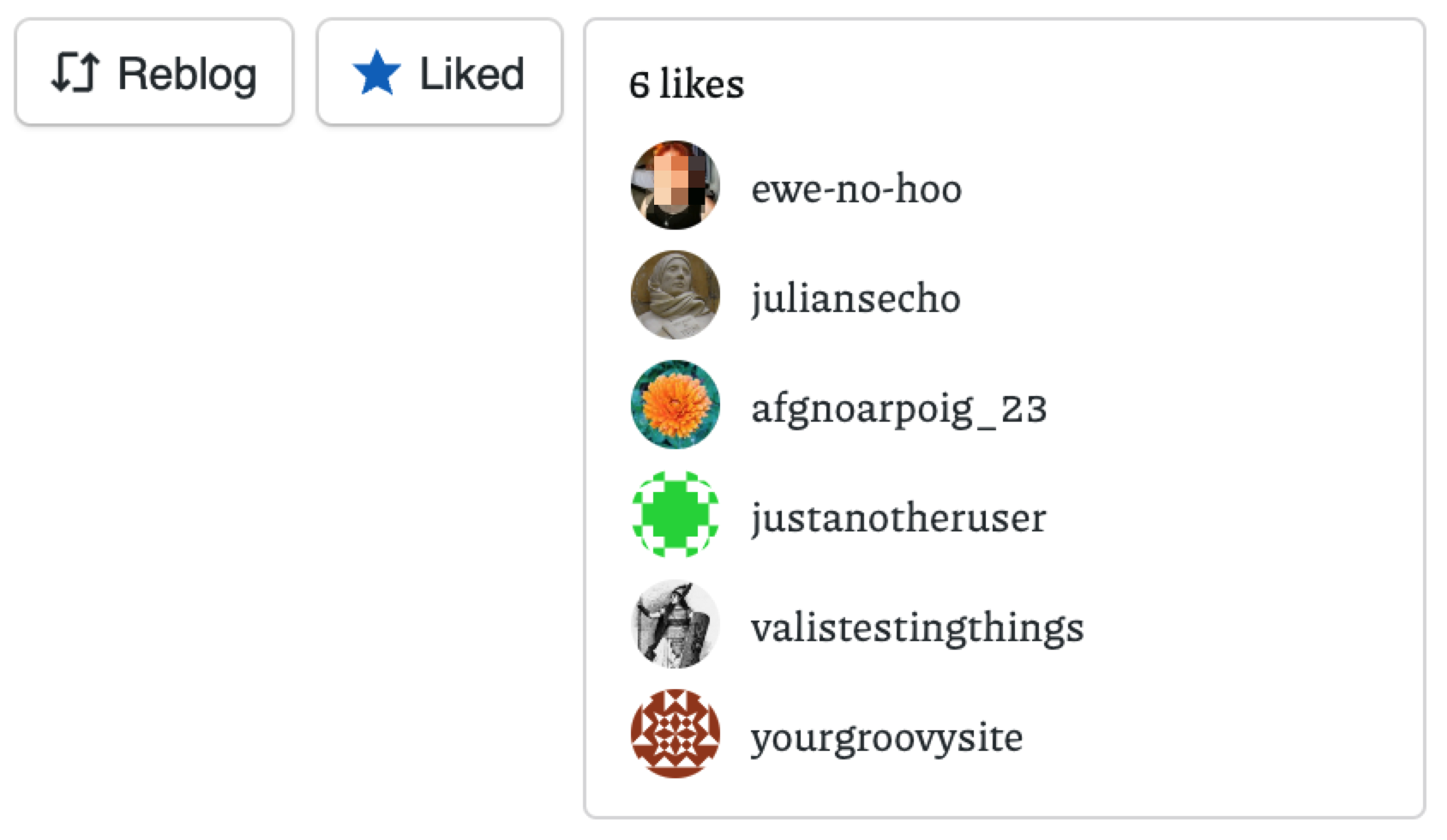
Over time, as the post grows in popularity, the number of Likes will increase. Up to five avatar images for people who liked the post will be shown next to the Like button, along with a link showing the total count of Likes on the post:

To see the rest of the Likes, click on the total count, and the rest of the Likes will display in a scrollable pop-up:
To see a list of all the posts you’ve liked, follow these steps:
- Visit your WordPress.com dashboard.
- Click on the Reader at https://wordpress.com/read.
- On the left side, click “Likes“.
A list of all your liked posts will be displayed, with the most recently liked post first.