

A link is a word or a group of words you can click on to go to another page. You can also add links to images, buttons, and menus. This guide will show you how to create text links on your site.
In this guide
There are several ways to add links (also known as hyperlinks) to words in pages, posts, and anywhere else that you normally edit text.
- Visit your dashboard.
- Go to Pages or Posts and click any page or post to edit it, or visit the site editor at Appearance → Editor.
- Using your mouse or touchpad, highlight the text you want to add a link to.
- A toolbar will appear directly above the text. Click the link icon that looks like the link of a chain:

- A text box appears where you can:
- Search for content on your site. Only published content will appear here, not drafts or scheduled content.
- Type the URL of your link. This can be a URL on your website or any external website.
- Paste the URL of your link. This can be a URL on your website or any other website.
- Press the return or enter key on your keyboard to save the link.
- Click the Update button at the top right of the editor to save the link.
- Copy the URL you want to link to your computer’s clipboard.
- You can do this by highlighting a URL, then right-clicking it and choosing Copy, or by using the keyboard shortcut
CTRL + C(PC) orCMD + C(Mac).
- You can do this by highlighting a URL, then right-clicking it and choosing Copy, or by using the keyboard shortcut
- In the editor, highlight the text you want to link.
- Paste the URL directly onto the highlighted text. You can do this by right-clicking and choosing Paste or by using the keyboard shortcut
CTRL + V(PC) orCMD + V(Mac). - This will automatically create a link. The highlighted text will now appear underlined to let you know it is linked.
- Click the Update button at the top right of the editor to save the link.
- In the editor, type two square brackets:
[[ - Your most recently published pages and posts will pop up in a list.
- Click the post or page you want to add to your content, which you can edit if needed.
- Click the Update button at the top right of the editor to save the link.
If you want to change a link’s text or URL, you can follow these steps:
- When editing some text, click on the link once.
- Select the pencil icon that appears.
- In the box marked Text, change what you’d like the text of the link to say.
- In the box marked Link, change the URL to which you’d like the text to link.
- Press the return or enter key on your keyboard or click the Save button.
- Click the Update button at the top right of the editor to save the link.
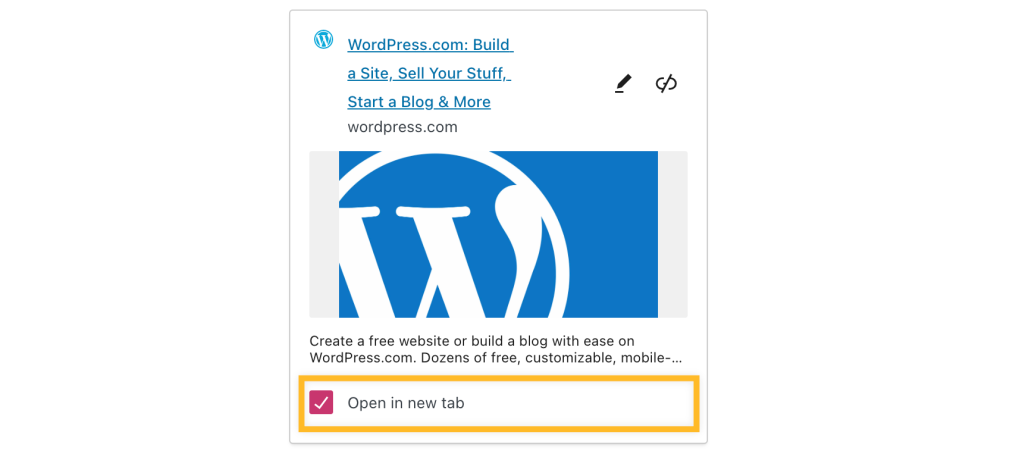
To set your link to open in a new browser tab:
- When editing some text, click on the link once.
- Tick the box next to Open in new tab.
- Click the Update button at the top right of the editor to save the change.
Mark a link as nofollow to tell search engines to ignore that link.
To mark a link as nofollow:
- When editing some text, click on the link once.
- Click the Edit (pencil) button.
- Click Advanced to reveal the advanced link options.
- Tick the box next to “Mark as nofollow”.
- Click the Save button.
This option will add a rel=”nofollow” HTML parameter to your link.
If you want to remove a link that’s on your site, you can follow these steps:
- When editing the page or post, click on the link once.
- Click the link button from the toolbar (it looks like a link from a chain), and the link will be instantly removed.
- Click the Update button at the top right of the editor to save the change.


