Appearance

Custom Menus

If you have a theme that supports the Custom Menus feature, you can create and arrange a group of navigation links for your visitors to find the important parts of your site faster.

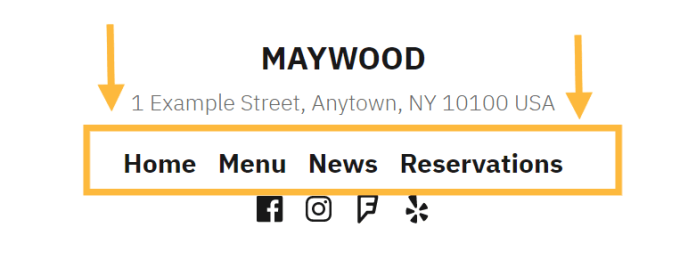
Most Custom Menus will show in the header area at the top of your site (the main navigation area), though this location can vary from theme to theme. With some themes, you may have the option to create and display multiple custom menus in different places on your site, such as the footer or special sidebar areas.

Customized main navigation menu in the Twenty Thirteen theme

Creating a custom menu allows you to do the following things:

  • Change the order of pages in your menu, or delete them!
  • Create nested sub-menus of links, sometimes referred to as “drop-down” menus
  • Create links to category pages allowing you to collect together posts based on that category
  • Add custom links to other sites, such as a link to your Twitter or Instagram profile

This video shows the basic steps for creating your first custom menu, and you can read more about each feature (plus advanced tricks) below.

Creating a Custom Menu

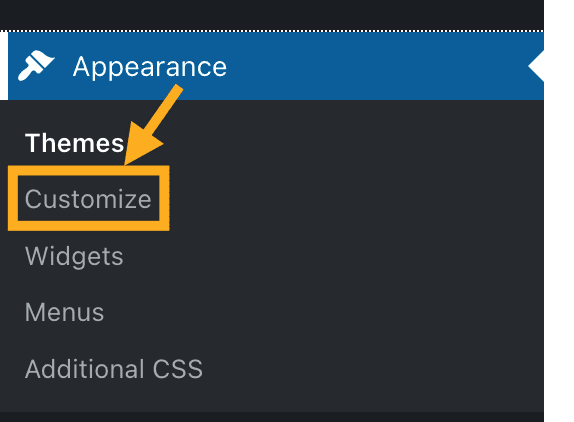
To create a custom menu, go to Appearance → Menus in your dashboard.

The Edit Menu screen

To create a new menu, click the create a new menu link, then just type in a Menu Name (to help you remember what it is), and click the Create Menu button.

After you create your first menu, you will notice that two new options appear to control the following:

  • Auto add pages – If selected, new pages to be added automatically when you create them.
  • Theme locations – Allows you to decide where you would like your custom menu to appear in your theme. By default, the main navigation area of your theme should be selected for you, but you can select a different location if your theme is capable of multiple menus.

menus-menu-settings

↑ Table of Contents ↑

Adding Pages

Adding pages to your menu is as simple as checking the proper boxes for the pages you want and then clicking Add to Menu. If you have a lot of pages, you can choose to view your most recent pages, or search for a page based on its name in the search tab.

The Pages menu module

↑ Table of Contents ↑

Want a menu tab to link directly to another website? No problem! Type in the URL where you want to take someone when they click on it, add Link Text to specify what the tab will say, and then click Add to Menu. Optionally, you can have a custom link open in a new window or tab by enabling Link Targets described on the advanced menu settings page.

Menus-links-module

↑ Table of Contents ↑

Adding Category Pages

Unlike your main blog page, which displays all of the posts on your site, a Category Page will allow you to create a filtered blog feed that displays only the posts from within a specific category. If you have a lot of categories, you can choose to view your most used, or search for a category based on its name in the search tab.

Simply check the box of the categories you’d like to add, then click Add to Menu.

The category menu module

↑ Table of Contents ↑

Changing the Order & Creating Sub-Menus

At any time, you can change the order and placement of menu items by simply dragging and dropping the items to change their order. To create sub-menus or “drop-down” style menus, drag individual items to the right to “nest” them under a given parent tab. You can undo this by dragging them to the left.

Dragging to create sub-menu items will create drop-down menus in most themes

Be sure to click Save Menu to save any changes to your custom menu.

Menus_save-menu-button

↑ Table of Contents ↑

In addition to arranging menu tabs to your liking, you can also customize the text and other details of each item that you add to your menu. To edit a menu item’s settings, click the down arrow to the right of the menu item. Once expanded, you can modify the following:

Menu item settings

  • Navigation Label – Enter your custom link text here. This overrides the default name of the menu item, replacing it with the name you give it instead.
  • Title Attributes – Adds custom hover text (a tooltip) and improves usability for impaired visitors using assisted devices.
  • Remove – Lets you delete the item from the menu completely.
  • Cancel – Allows you to cancel any changes you have made to it.

Be sure to click the Save Menu button to save any changes to your menu items. Your menu item will now look something like this:

Menus_custom-tab-settings

↑ Table of Contents ↑

Editing Your Menus

If you need to edit your custom menu for any reason, simply return to the Edit Menu screen by going to Appearance → Menus in your WordPress Dashboard. You should see your custom menu and its contents displayed, and you can make any changes you wish to update the menu. Make sure to click Save Menu to save your changes.

Note, if you have more than one menu saved to your site, you will see a selector to choose the menu you want to edit. Learn more about advanced menu settings here.

↑ Table of Contents ↑

Managing Your Menus

If you have created more than one menu, you can manage them by clicking on the Manage Locations tab at the top of the Menus page.

Menus-menu-locations

On the Manage Locations screen, you will see what locations are available for displaying menus in your theme, and can assign a menu to each location by selecting it in the drop-down. You are also given options to Edit (which launches the selected menu in the Edit Menu screen) or Use new menu instead, which will allow you to create a new menu for use in that location.

↑ Table of Contents ↑

Troubleshooting

If you getting a warning that says ‘The current theme does not natively support menus, but you can use the “Custom Menu” widget to add any menus you create here to the theme’s sidebar.’ then your theme may not support custom menus. This is usually the case with some of the older themes in our theme library.

In this case you may wish to switch to a theme that supports menus for navigation by searching in Appearance →Themes and choosing “Custom Menu” from the Feature Filters menu. If your theme doesn’t have the navigation support, you can use the Custom Menu Widget in one of the sidebar areas instead.