

A home page is the front page of your site. Using the steps in this guide, you can control which page your visitors see first when visiting your website.
To set the homepage of your site, follow the steps below.
Select the appropriate tab for your admin interface style:
- Visit your site’s dashboard.
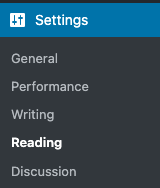
- Navigate to Settings → Reading in the sidebar:
- Locate the dropdown option “Your homepage displays” at the top of the screen:
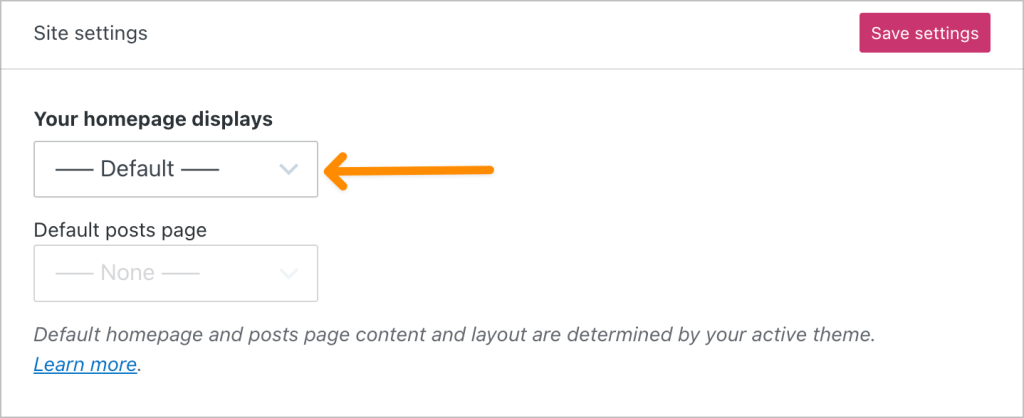
- Choose from the following options:
- Select the — Default — option to use the homepage design from your site’s theme.
- You can edit the design of this homepage by going to Appearance → Editor. To learn how to customize the design of this page, visit Edit the Default Homepage Template.
- To use a different page you created, such as a custom design or landing page, select that page from the list. Only published pages (not draft pages) will show here.
- Visit the Create a Custom Homepage guide to learn more.
- Select the — Default — option to use the homepage design from your site’s theme.
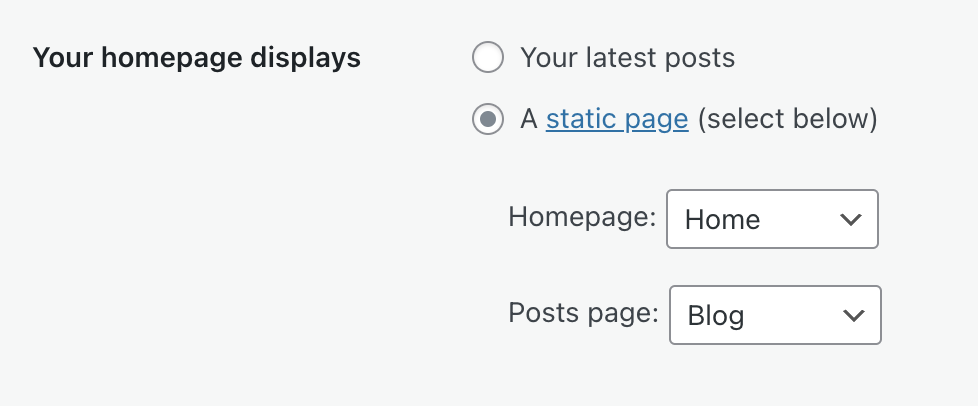
- (Optional) Set the default posts page if you choose to use a custom homepage.
- Click the “Save settings” button to save your selected homepage.
If your homepage has gone missing, do not worry! You may have switched themes, replacing your site’s homepage with the new theme’s homepage. To recover your old homepage, you can:
- Check in the Pages → Drafts section of your site’s dashboard for the old homepage content. It may be available here, depending on the theme.
- Switch back to your previous theme to access the old content again. If you have forgotten the name of your previous theme, you will find it in your site’s Activity Log.


