

Use the Pay with PayPal block to add a PayPal payment button to any post or page. You can use it to collect payments or donations securely through your site via PayPal.
In this guide
This feature is available on sites with our WordPress.com Explorer, Creator, and Entrepreneur plans. If your site has one of our legacy plans, it is available on the Pro plan.
To add the Pay with PayPal block, click the + Block Inserter icon and search for “Paypal”. Click to add the block to the post or page.
💡
Using your keyboard, you can also type /paypal on a new line and press enter to quickly add a new Pay with PayPal block.
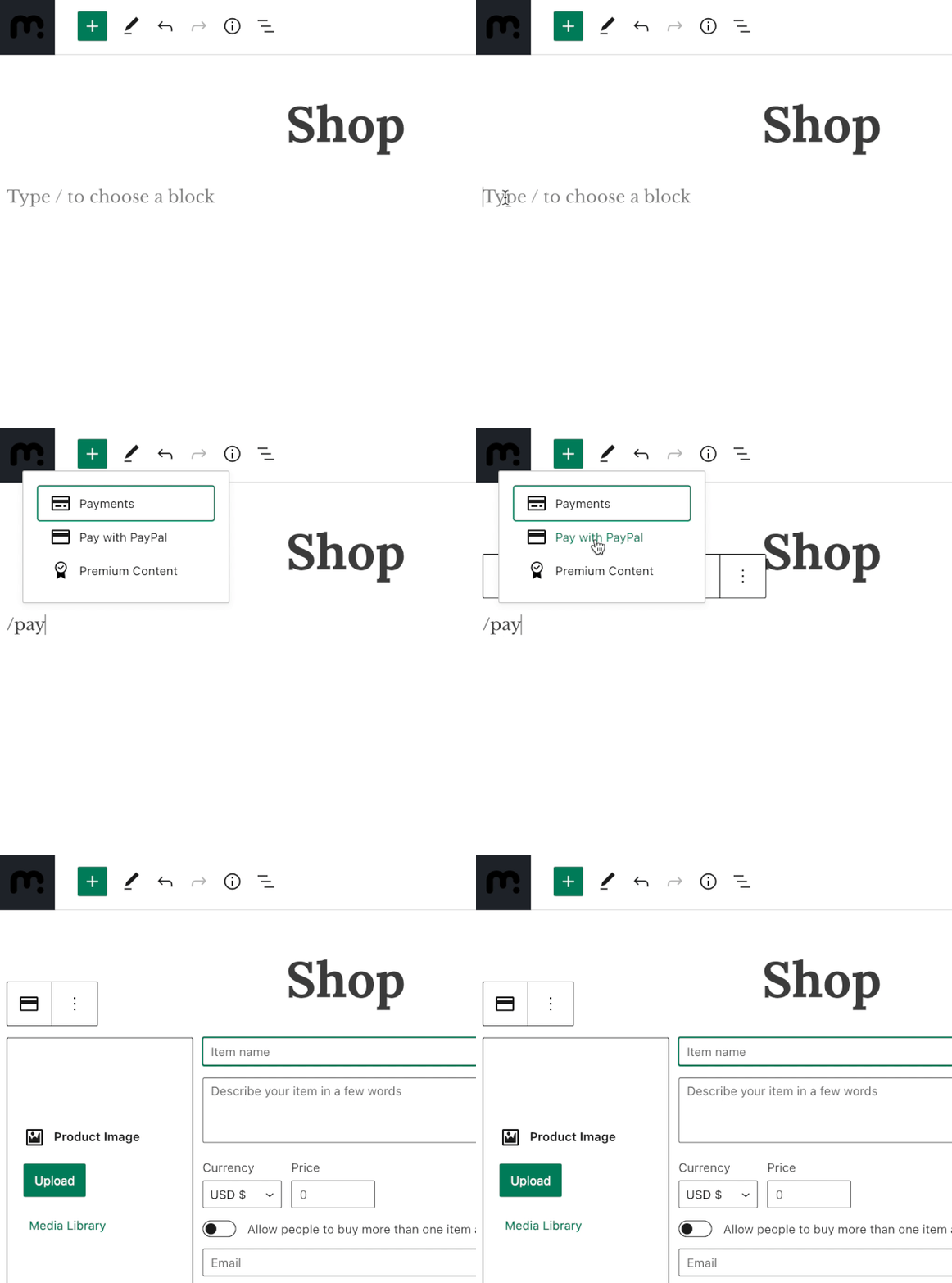
For more information, visit our detailed instructions on adding blocks.
After adding the Pay with PayPal block, you can fill out the following details:
- Product Image: Upload or select an image from Media to represent what you’re selling.
- Item name: Enter the name of the item you are selling.
- Description: Enter a brief description of the item.
- Currency: Select your currency.
- Price: Enter the price without a currency symbol.
- Allow people to buy more than one item at a time: Select whether to allow people to buy more than one of the item at once.
- Email: Enter the email address associated with your PayPal account to receive the payment.

Here’s an example of how the product will be displayed with all the details filled out. You can click the Preview option in the editor to view your PayPal button before publishing the page.

You can add as many Pay with PayPal blocks as you like to your site by repeating the process above.
If you’re using the Pay with PayPal block to sell physical products, consider that the button does not take into account tax or shipping costs. Therefore, you’ll want to include that in your price.
The shipping address is collected through PayPal, so once you receive your payment notification from PayPal, you’ll also receive the buyer’s address to ship the product to.
PayPal buttons are a simple way to charge for products. To add full e-commerce functionality to your site, like a shopping cart, checkout, tax, shipping, and more, install the WooCommerce plugin instead.
When visitors to your site click the Pay with PayPal button, a new window will open that will take them through the PayPal checkout:
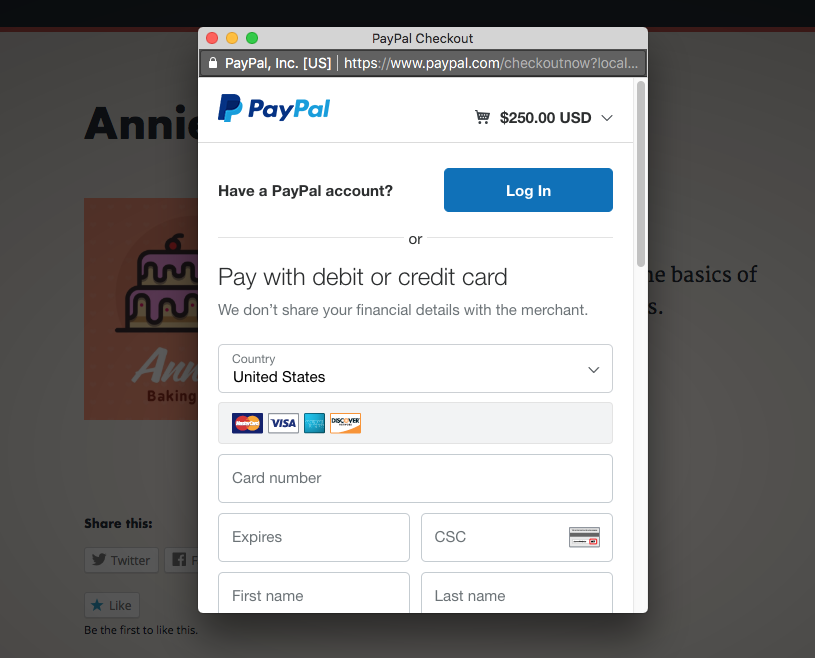
Your visitor can pay you from their PayPal account using PayPal funds or a credit card. If they are logged into PayPal and have access to PayPal Credit as a payment method, they will also see a PayPal Credit button.
If you have a Business PayPal account, they will have the option to use a credit or debit card to complete the purchase without a PayPal account.
To collect payments, your site’s privacy settings must be set to Public.
Be sure to check that PayPal supports collecting online payments in your region. Refer to PayPal’s online support for a list of supported countries.
All payments are issued to the PayPal account linked to the email address you used when setting up the button. For every purchase, PayPal will send a confirmation email with the purchaser’s information to your PayPal email address. The purchaser will also receive an email from PayPal as a receipt for their purchase.
If the email you provided in the block settings is not linked to an existing PayPal account, you will receive an email from PayPal with information about claiming any collected payments. This email is sent after you receive your first payment.
WordPress.com will also send an email for each purchase. This email will be sent to your WordPress.com account email address. You can also expect a monthly report for all your Pay with PayPal blocks. This email is sent to the owner of your site’s WordPress.com plan.
PayPal will take a fee. The amount varies depending on the payment method, the country, and other factors. Information on PayPal fees.
WordPress.com does not charge any fee or take any cut of the payments.


