

Surveys, polls, and quizzes are a great way to enhance your site with interactive elements. This guide will introduce you to the various methods you can use to add these to your website.
In this guide
Insert a poll on your site using the Poll block:
- In the WordPress editor, click the + block inserter button anywhere on the screen.
- Search for “Poll” and click it to add the Poll block.
- Add your question, an optional note, and the potential answers for your poll.
The Poll block is available on all WordPress.com sites. If you have a plugin-enabled site, activate our free plugin to use the Poll block.
For more information on how to customize your poll and view the results, visit our Poll block guide.
Crowdsignal is our service for creating and sending out interactive surveys, polls, and quizzes. Customize these to match your brand style and use other great features like poll restrictions, data filters, multi-language support, and more.
Anything you create on Crowdsignal can be displayed on your WordPress.com site by following these steps:
- Navigate to Crowdsignal.com and sign up for a free account. You can log in using your WordPress.com account.
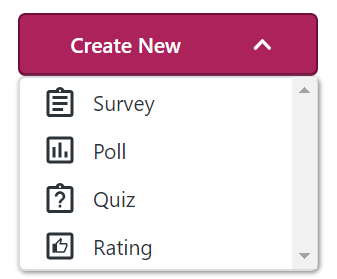
- On your Crowdsignal dashboard, click “Create New” and select either survey, poll, quiz, or rating:
- Create your poll, survey, or quiz. Refer to the Crowdsignal support guides for detailed help with this step.
- Once your poll, survey, or quiz is ready to share, click on the “Share” button at the top of the screen.
- In the tabs at the top, select “Embed” to display the poll, survey, or quiz directly on your website. You’ll also find other sharing options, including a website popup.
- Copy the link from the field that displays or click “Copy to Clipboard“:
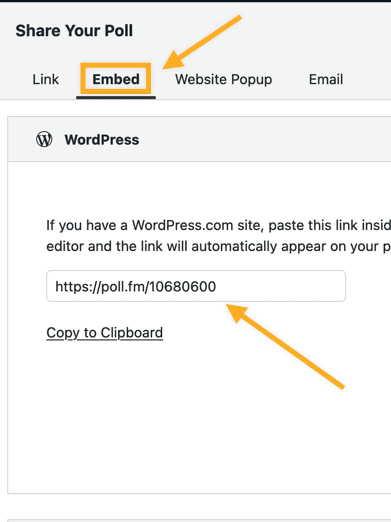
Paste this link on a new line on any page of your site and it will automatically convert to an embedded poll/survey/quiz.
The free account at Crowdsignal allows up to 2500 signals. For more about what counts as a signal, please see Crowdsignal’s documentation.
Add more engaging elements to your site with the following blocks from Crowdsignal available on WordPress.com:
- Insert a thumbs up & down voting button with the Vote block.
- Calculate your site’s Net Promoter Score with the Measure NPS block.
- Let your audience share their enthusiasm with the Applause block.
- Add an always-visible button that allows your audience to share feedback with the Feedback Button block.


