The WP Admin dashboard contains options to make quick changes to multiple pages and posts in bulk. This guide will show you how.
These instructions are referring to the WP-Admin interface. To view this interface, click the View tab in the upper right corner and select Classic view.
In this guide
You can make changes to the following details about a single page or post without opening the page/post editor screen:
- Status (published, pending review, or draft)
- Page attributes (pages only)
- Categories (posts only)
- Tags (posts only)
- Pings (posts only)
- Sticky (posts only)
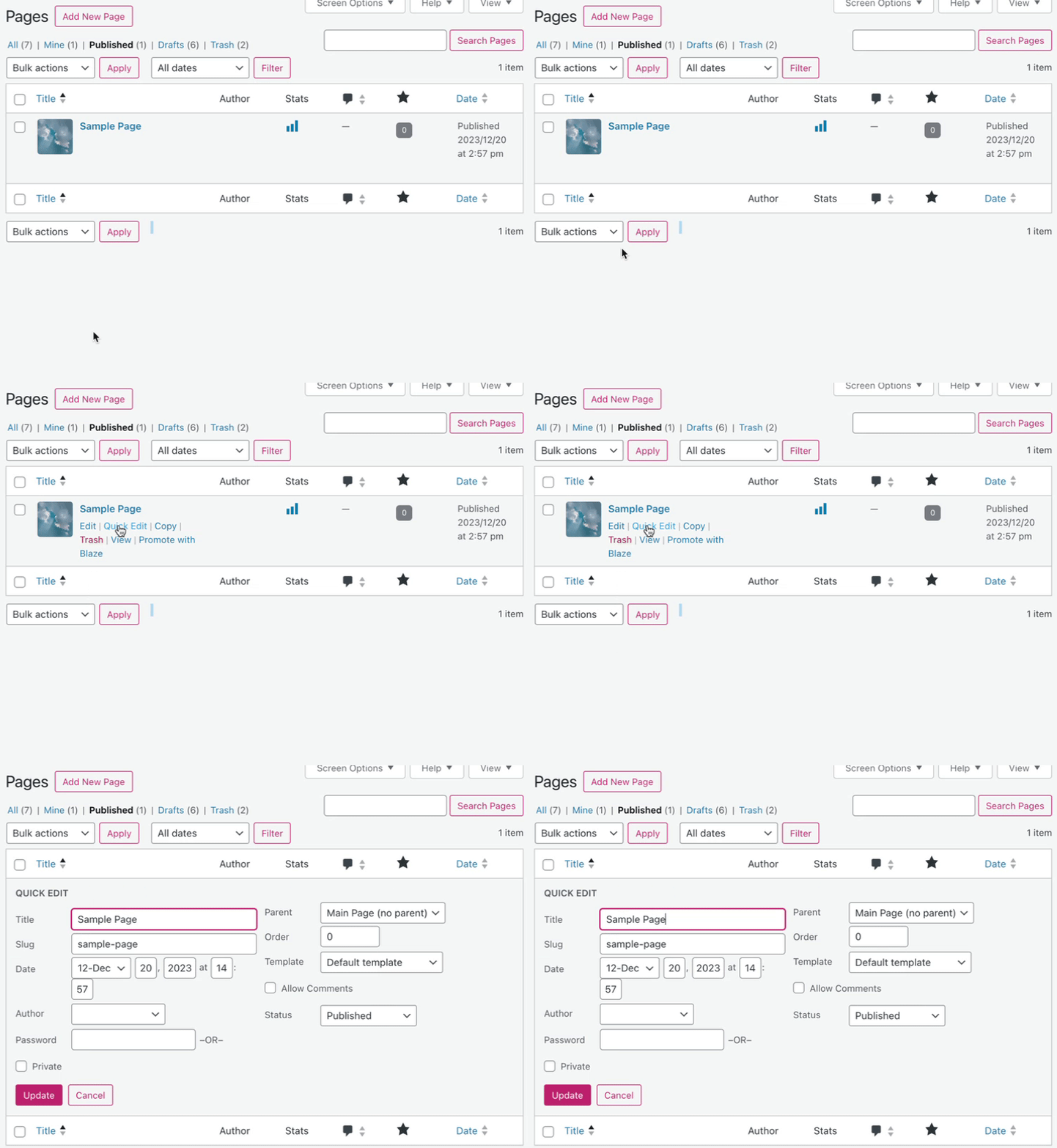
To make a quick edit, take the following steps:
- Visit your dashboard.
- On the left side, navigate to Pages or Posts.
- Ensure you are viewing the Classic View interface.
- Hover your mouse over the title of any page and select “Quick Edit.”
- Make your changes and click the “Update” button to save.
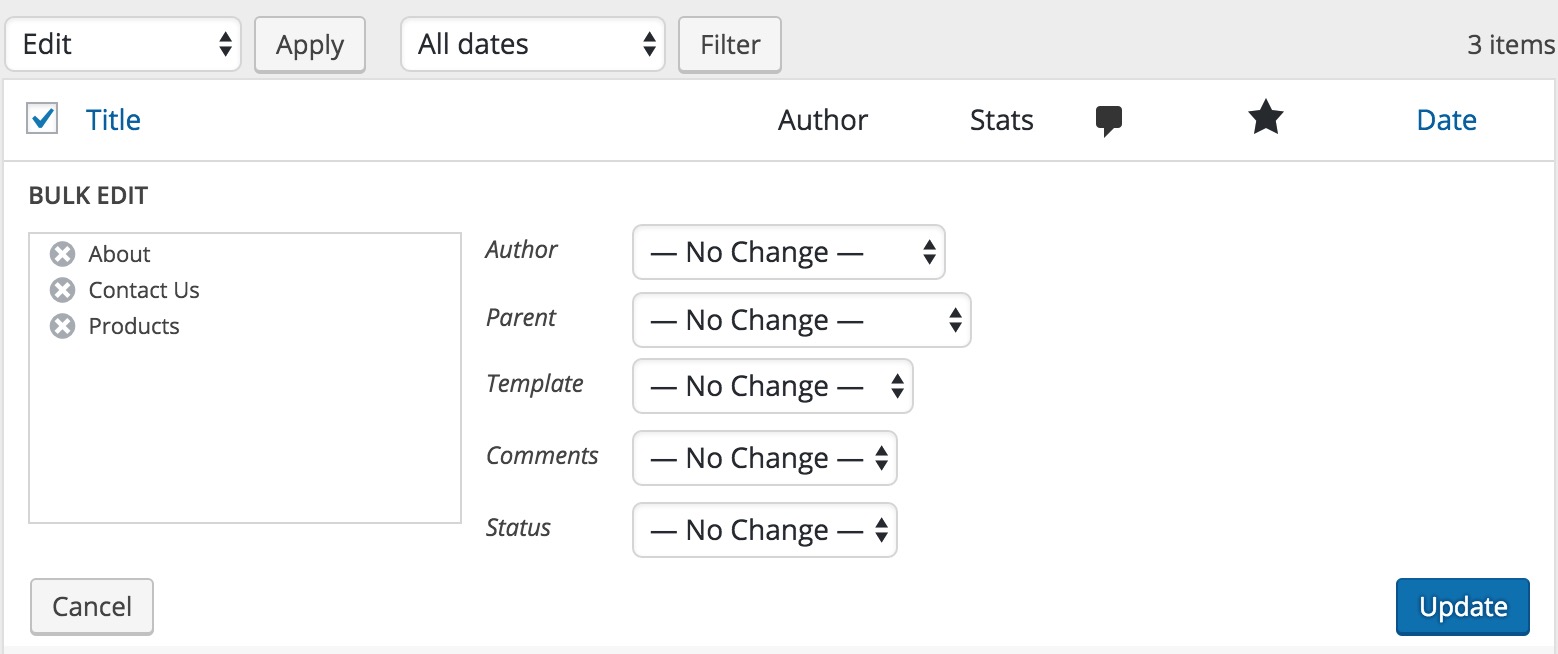
You can use bulk editing to modify multiple pages or posts simultaneously. To make changes to a lot of pages at once, take the following steps:
- Visit your dashboard.
- On the left side, navigate to Pages or Posts.
- Ensure you are viewing the Classic View interface.
- Tick the checkboxes on the left of each page to which you want to make the same changes.
- From the dropdown menu labeled “Bulk actions,” select “Edit.”
- Click the “Apply” button.
- You can then make changes to the following details for all selected items at once:
- Author
- Parent page (pages only)
- Template
- Comments
- Status (published, pending review, or draft)
- Categories (posts only)
- Tags (posts only)
- Pings (posts only)
- Sticky (posts only)
- Click the “Update” button when you are done bulk editing your selections.
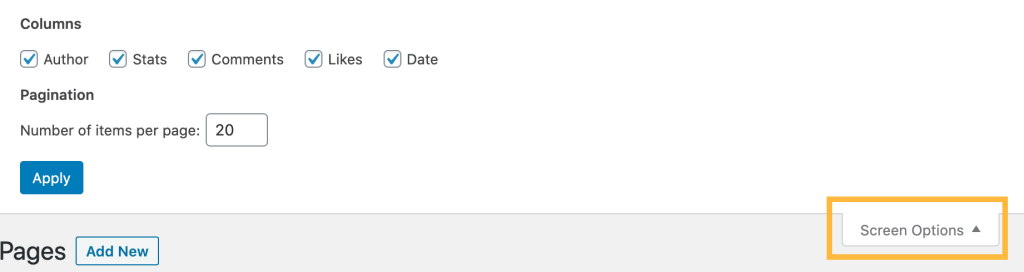
Use the “Screen Options” pull-down tab at the top right of the screen to show/hide the columns displayed on the WP Admin pages and posts list. This can be especially useful when plugins add extra columns that may make the list too crowded.