

Tags provide a useful way to group related posts together, quickly tell readers what a post is about, and help new readers discover your content. This guide will show you how to optimize your blog with tags.
In this guide
Tagging brings traffic to your blog via the WordPress.com Reader. It connects you to people who are passionate about the same topics as you and might belong to online communities you want to tap into.
Tags are similar to categories, but they are generally used to assign more specific keywords to your post. The use of tags is completely optional.
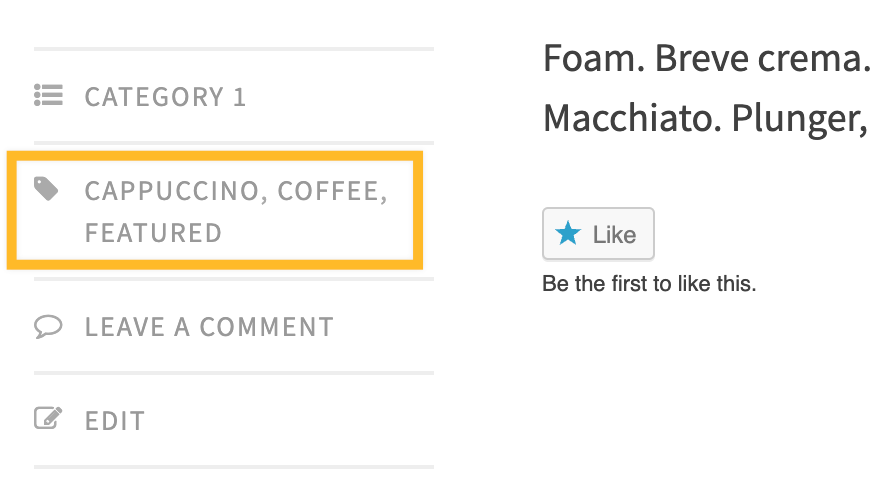
You can assign multiple tags to each post. Depending on the theme and widgets you have activated, tags can be displayed at the top or bottom of posts, on the individual post view, and/or in the sidebar. Some themes use tags to create featured content on home pages.
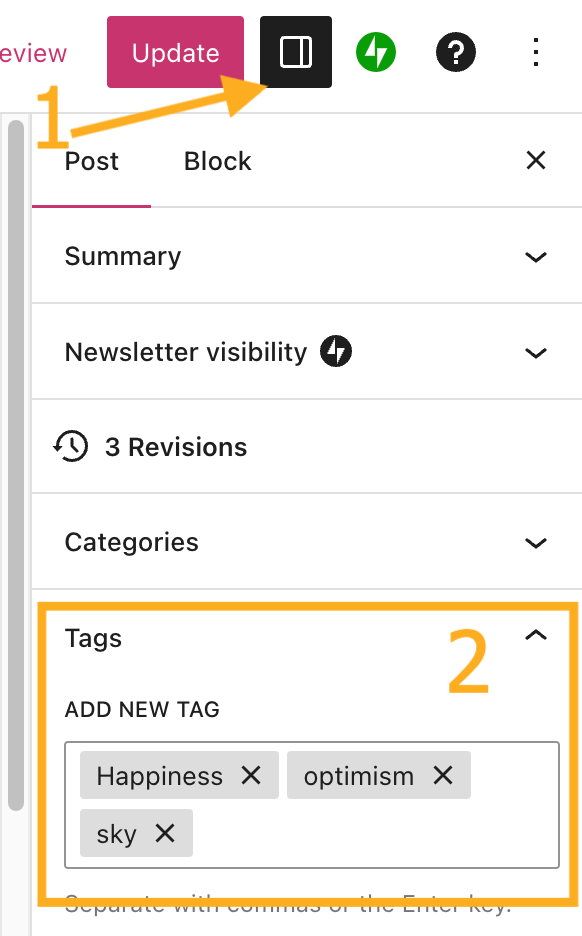
To tag a post, take the following steps:
- In your site’s dashboard, click on Posts.
- Click on the post you want to tag.
- Open the post settings sidebar (marked with a 1 in the adjacent image.)
- Find the Tags section (marked with a 2 in the adjacent image.)
- Using your keyboard, type your tag followed by a comma or the Enter key.
- If the tag has already been created for a previous post, the Tags box will begin to auto-populate with matching tags as shown below.
- When finished, click Update or Publish to apply the changes to that post.
You can remove a tag by clicking the X next to the tag name.
You can add as many tags as you like for a single post. However, posts with more than 15 combined categories and tags will not appear in the WordPress.com Reader.

After tagging your posts as described in the previous section, you may wish to display those tags on your site to make it easier for your visitors to find specific content.
There are several ways to do this:
- Add tags to your site’s navigation menu. Visit Add Links to a Menu to learn how.
- Display a list of tag names, commonly shown in a sidebar or footer. Insert the Tag Cloud block to do this.
- Display posts of a particular tag on a page:
- WordPress automatically creates these pages for you – see below.
- Insert a Query Loop, Post Carousel, or Blog Posts block that you can filter to show posts of a specific tag.
WordPress automatically generates a tag page for every tag on your site. This page displays all of the posts with that tag and automatically updates with every new post you publish with that tag. The tag page will have a link in the following format:
https://yourgroovysite.com/tag/tag-name/
To visit any tag page on your site, use the above URL and:
- replace
yourgroovysite.comwith your website’s address. - replace
tag-namewith the name of your tag.
You can also visit a tag page by viewing a blog post on your site as a member of the public and clicking on the tag name, typically displayed at the top or bottom of the post.
The design of these tag pages is controlled by your site’s theme. If your theme supports the Site Editor (Appearance → Editor), you can customize the tag page design by editing the Archive template.
If a tag page displays a message such as “not found” or “nothing found”, no published posts are assigned to that tag yet. After you assign at least one public post to a tag, it will appear on the tag page.
Deleting or editing a tag will not delete or modify any posts associated with that particular tag. To edit or delete tags follow the steps below.
Select the appropriate tab for your admin interface style:
- Visit your site’s dashboard.
- Navigate to Posts → Tags.
- Click the ellipsis (three dots) to the right of the tag you want to edit or delete.
- Choose:
- Edit: Change the name, parent category, and category description.
- Delete: Remove the category from your site. This does not delete any posts which had that category.

If you have a lot of tags that you want to delete, you can use the bulk actions option.
These instructions are referring to the WP-Admin interface. To view this interface, click the View tab in the upper right corner and select Classic view.
Under Posts → Tags, tick the checkbox next to all the tags you wish to delete. In the Bulk Actions drop-down above the list, select Delete, then click the Apply button.
In the WordPress.com Reader, your posts will appear in the topic listings of any tags you use. Therefore, assigning tags to your post increases the chance that other WordPress.com users will see your content.
However, you don’t want irrelevant content showing up on the topic listings or search, and neither do we. That’s why we limit the number of tags and categories that can be used on a public tag listing. We recommend adding a maximum of 5 to 15 combined categories + tags to each of your posts
The more tags and/or categories you use, the less likely it is that your post will be selected for inclusion in the topic listings. You can read more about tags for topics in the Reader here.
When tagging your posts, keep in mind the following tips:
- 15 items or fewer: Keep the combined categories and tags under 15 for each post. Otherwise, the post will not appear in the WordPress.com Reader. This limit is used to keep out spam, so ensure that your tags are only those most relevant to your post.
- Get specific: Specific tags get noticed by readers looking for relevant content. A tag like coffee is general, whereas a tag like vietnamese iced coffee is specific.
- General is ok too: By tagging a post with a general keyword like coffee or books, your post competes for attention with many other posts with the same tag. However, these tags are searched for a lot, so your post can get noticed soon after your post is published by the many people who care about these topics.
- Monitor the results: Using Stats, you can see how popular a post is and figure out what’s working best for your site.


