

Visit the WordPress.com Reader to discover new blogs and keep up with the latest posts from sites you follow. This guide will show you how to use Reader.
In this guide
The WordPress.com Reader combines all public WordPress.com websites — those hosted at WordPress.com and WordPress.org sites connected through the Jetpack plugin — in one central location.
Your customized Reader feed displays posts from all the sites you follow in the order they were published, with the most recent content appearing at the top. You’ll find an excerpt of each post, images if available, and options to like, comment, share, or visit the blog:
To view the WordPress.com Reader, take the following steps:
- Log into your WordPress.com account or create a new Reader account.
- In the admin bar at the top of your screen, click on “Reader“.
If you do not see the “Reader” link at the top of your screen, you can visit the Reader directly at this link: https://wordpress.com/read
💡
You can also access the Reader using the Jetpack app for iPhone and Android.
When visiting the Reader in your browser, the center of the screen will show the most recent updates from the blogs you’ve subscribed to.
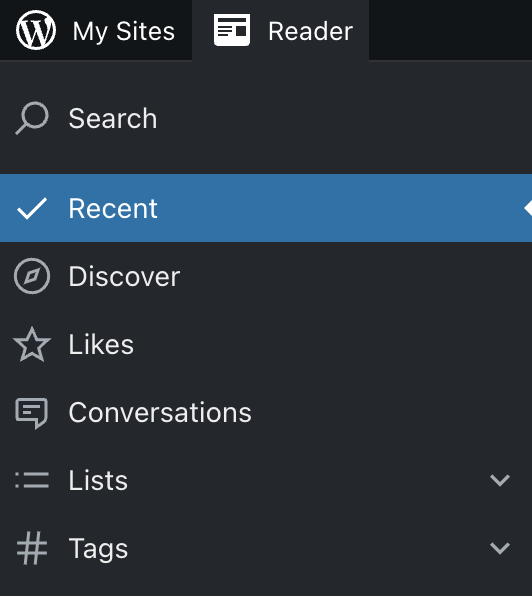
On the left side of the screen, you can navigate between:
- Search: Type any topic or keyword and find great reads based on your activity.
- Recent: The newest updates from the blogs you’ve subscribed to.
- Discover: Explore popular blogs you’re not subscribed to.
- Likes: View all posts for which you clicked the Like button.
- Conversations: Read and reply to posts you’ve liked or commented on when they have new comments.
- Lists: Create and follow lists of blogs and topics. Visit our Reader Lists guide for more.
- Tags: Follow posts about specific topics. Visit our Reader Tags guide for more.
On the right side of the screen, you can view a list of sites you’re subscribed to.
Click the “Manage” link to view, adjust, or unsubscribe from any site.

The following website feeds appear in Reader automatically:
- Sites hosted on WordPress.com.
- Sites using WordPress.org, connected to WordPress.com via the Jetpack plugin.
The Reader is a feed aggregator, and you can use it to follow all of your desired blogs in one place, even blogs that aren’t on WordPress.com (such as from Tumblr, Blogger, or sites with an RSS feed.)
Visit our Subscribe to Blogs guide to learn more.
When viewing a post in Reader, you can take the following actions:
- Click on the post directly to read it in full in the Reader.
- Choose from the following options at the bottom:
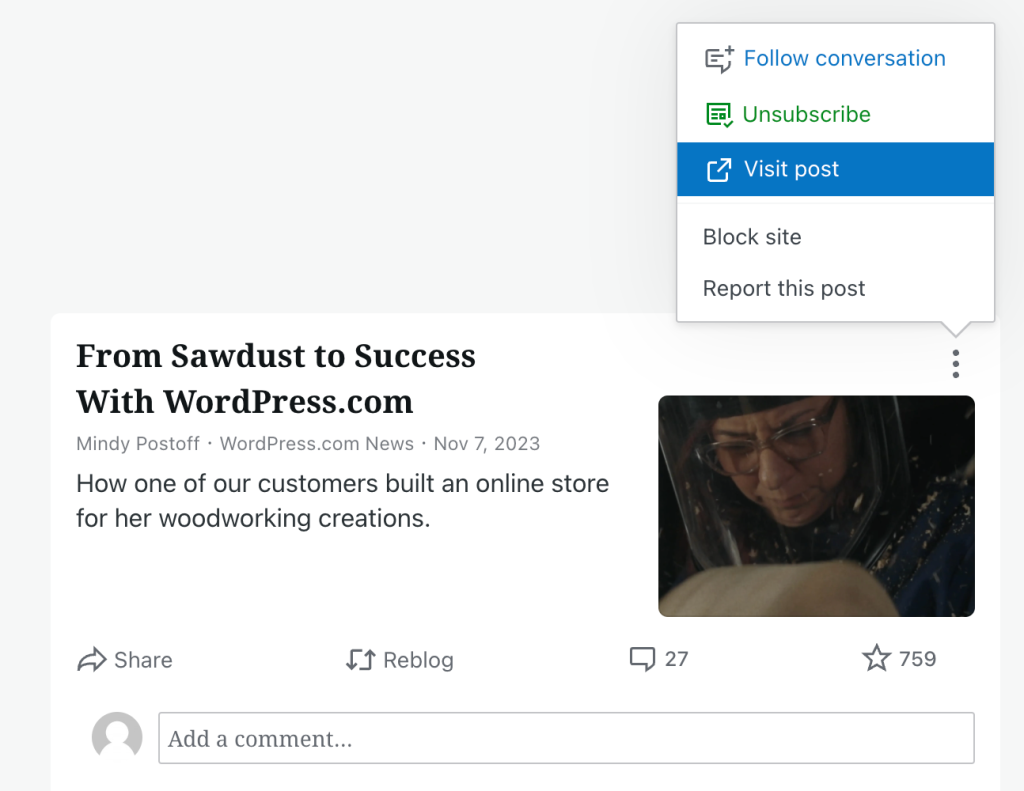
- Click the three dots in the upper right corner of an entry to:
- Follow the conversation.
- Subscribe to or unsubscribe from that site.
- Visit the post directly on that website.
- Block the site from your Reader. View a list of all sites blocked here.
- Report the post.
Depending on the content of your post, the Reader will display your post in one of the formats described below. If your published post is not showing in the Reader, check your site’s Privacy Settings to ensure your site is public and does not discourage search engines.
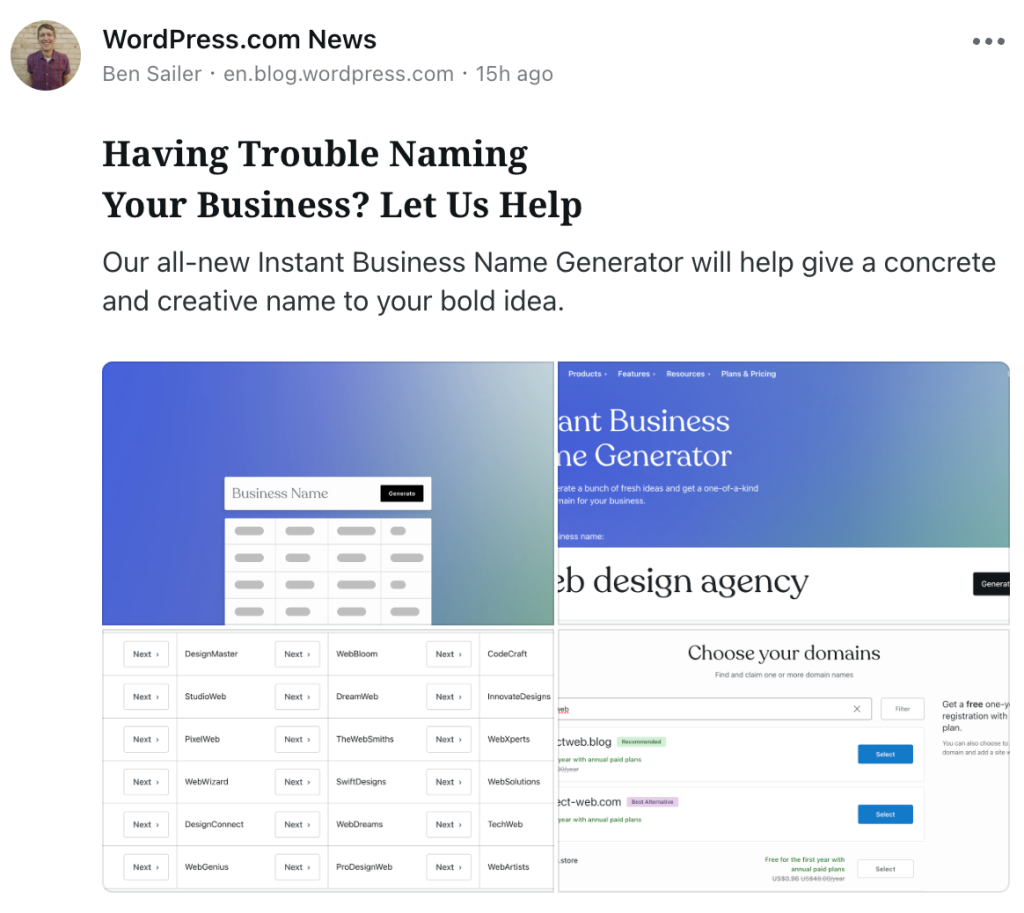
The standard card will be shown if your post contains at least one usable image (350px+ wide) and a reasonable amount of text (over 100 characters).
The card will show the post’s featured image and images taken from the post content (up to four images in total) at thumbnail size, along with an excerpt of the post’s text.
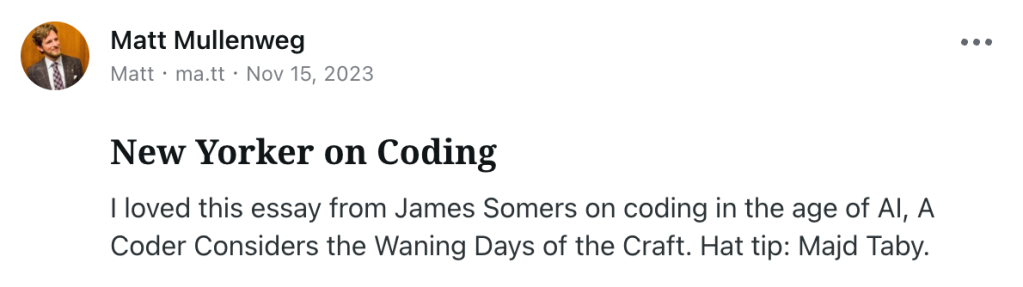
If your post contains only text, a two-line excerpt will be displayed.
Posts containing five or more usable images will be displayed with a slider that readers can swipe through to view images from the post.

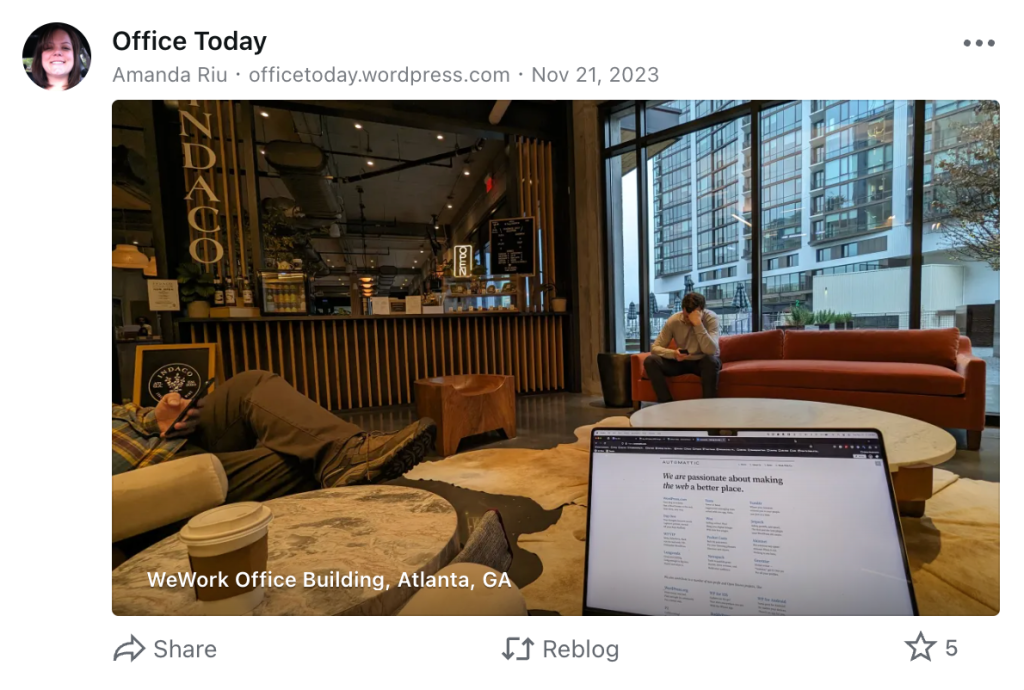
The photo card is used for posts that contain one usable image and fewer than 100 characters of text. The image is initially cropped, but you can click the image to view the full image without switching to the single-post view.
This card does not display any text included in the post but does display the post title superimposed on the image.
For a post containing a video, the Reader will show a video thumbnail with an overlaid Play button, along with an excerpt of the post’s text content.

For prolific sites that publish several posts a day or even an hour, the Reader will display the posts using combined cards provided no posts from other sites you follow were published in between.

📌
The Reader only considers images added to the post content itself when deciding which card to use. Featured images that are not also added to the post content may be displayed but will not determine which card is used.


