On classic themes, you can use the steps on this page to enable sharing buttons for your readers to share your content across various social networks and services. Block theme sites can use the Sharing Buttons block instead of the instructions on this page.
In this guide
To access the Sharing Buttons settings:
- Visit your site’s dashboard.
- Navigate to Tools → Marketing.
- Click on Sharing Buttons.

Here, you can show or hide sharing buttons on different types of content throughout your site. Tick or untick the box next to the following options:
- Front Page, Archive Pages, and Search Results: Your site’s home page, post archive pages (like category and tag pages), and the page that appears when visitors use the search option on your site.
- Posts: Individual blog posts.
- Pages: All pages other than the front page (like an About or Contact page).
- Media: Images and other media files opened as an attachment page.
- Testimonials: If your site uses the custom post type of Testimonials.
- Projects: If your site uses the custom post type of Portfolios.
Tick the box for Comment Likes if you want your visitors to “like” comments left on your site.
Include your X (formerly known as Twitter) Username so that any time someone uses the X or Twitter sharing button on your posts or pages, your handle will be included in their tweet.
After adjusting the above settings, click the Save Changes button.

You can add any or all of the following sharing buttons to your posts and pages:
- Twitter / X
- Threads
- Tumblr
- Telegram
- Bluesky
- Mastodon
- Nextdoor
- Skype
- Press This
📌
Some services are not available if your site is marked as private. Change your Privacy Settings to public to see all options.
Adding these sharing buttons lets your visitors share your page or post to their preferred social network or email or print the post/page.
To customize the social media buttons displayed on your site, take the following steps:
- Visit your site’s dashboard.
- Navigate to Tools → Marketing.
- Click on the Sharing Buttons tab.
- Scroll down and click the “Edit sharing buttons” option.
- Click the buttons you would like to add or remove. As you do, you’ll see your chosen buttons in the preview above.
- Click the Reorder button to click and drag your chosen buttons to your preferred order.
- Click Close.
- Click the Save changes button.
You can optionally include a “More” button that displays additional social networks. These buttons will appear after your reader clicks the “More” button that appears next to the buttons you chose in the previous section:
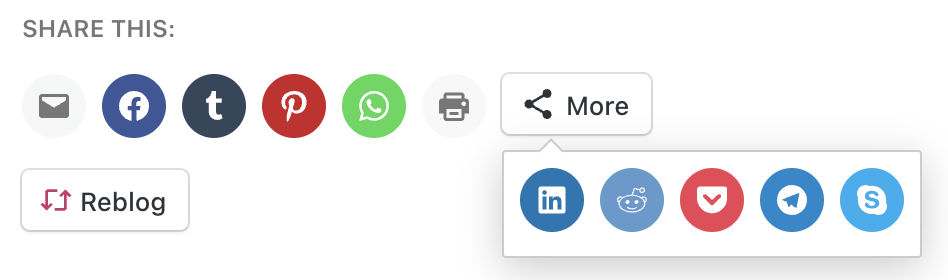
To enable the “More” button, click on the Edit “More” buttons option. Similar to the steps in the previous section, click the buttons you want to add or remove. As you do, you’ll see your chosen buttons in the preview above. You can click the Reorder button to click and drag your chosen buttons to your preferred order.
You can choose from several different appearances of your social share buttons:


If you have selected Official Buttons, some of the services will show the number of shares on your blog, as reported from that service. Some important information about each service:
- X (formerly known as Twitter) will not show the number of shares.
- The Pinterest Pin-It button will only show on images if you are using the Official Buttons style.
- Facebook Share numbers include the total of shares, likes, and comments on Facebook.
The counts can change or reset to zero if your site’s domain changes. These counts come directly from the social networks, not from us, and they will not migrate counts made toward a specific URL that has since changed. Unfortunately, it is not possible to recover old share counts. You may consider changing to a different button style that does not display share counts.
You can optionally include the following WordPress share buttons:

To show or hide these buttons, tick the corresponding box in the “Reblog & Like” section of the Sharing Buttons settings.
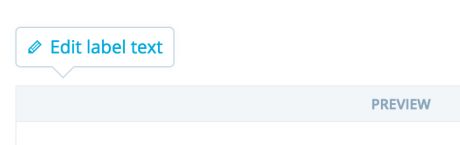
You can display some text next to your share buttons to encourage your readers to share your content. By default, this is set to say “Share this”. You can edit this label by clicking the “Edit label text” button at the top of the sharing buttons setting screen.
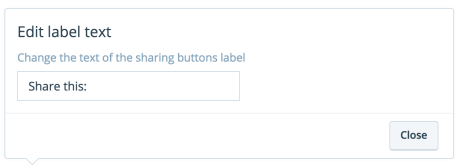
Once you change the label text, click Close, then Save Changes to publish the changes to your sharing label.
You can disable the social share buttons and/or Like buttons on a per-post or page basis:
- In your site’s dashboard, navigate to Pages or Posts.
- Click on a page or post to open the editor.
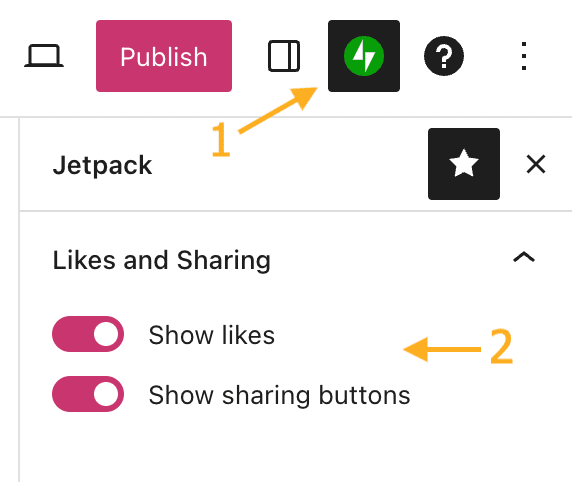
- Click the Jetpack icon (that looks like a lightning bolt on a green circle) in the top right corner of the editor screen.
- Under the Likes and Sharing section, check or uncheck the boxes to show likes and sharing buttons.
- Click Update or Publish to save your changes.