

When you upload images and other files to your website, they are stored in your site’s Media. This guide will show you how to check your site’s available plan storage, increase your storage capacity, and free up space.
In this guide
Your site’s storage space depends on which plan you have for that site:
- Free sites launched before 31 March 2021 include 3 GB of storage. ↩︎
- Creator or Entrepreneur (formerly known as Business or Commerce) plans purchased before 1 August 2019 that do not have hosting access activated include unlimited storage. ↩︎
- Creator or Entrepreneur plans purchased before 20 July 2023 include 200 GB of storage. ↩︎
If your paid plan expires or is canceled, your previously uploaded files will not be deleted and will stay accessible. However, you won’t be able to upload new files until you upgrade to a plan with sufficient storage or clear some space in your existing storage.
To check how much storage space remains on your site, take the following steps.
Select the appropriate tab for your admin interface style:
- Visit your site’s dashboard.
- Navigate to Media in the sidebar.
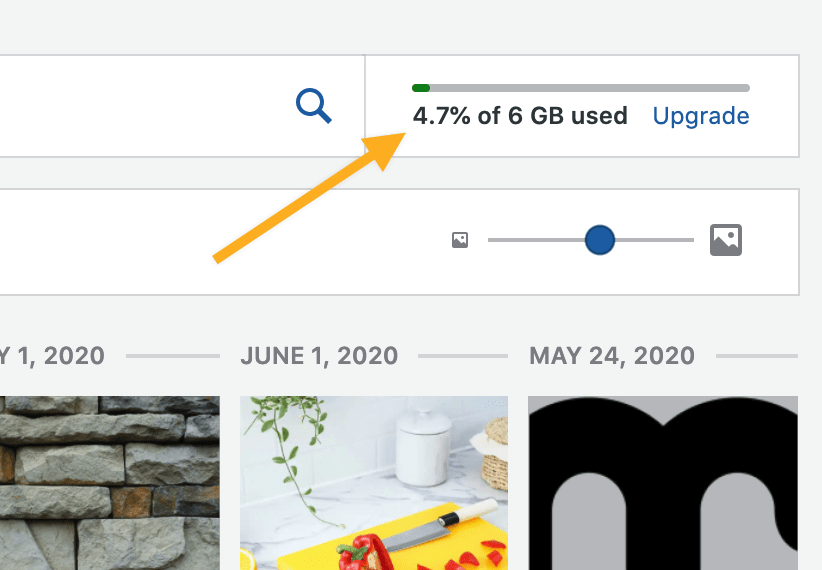
- View the storage space in the upper right corner of the page to see your site’s total storage capacity and how much you’ve used so far.
The amount of space you need will vary depending on how you will use your site:
- If you have a simple website with just a few images, such as for a personal blog, side project, or a simple landing page, 1 GB may be sufficient.
- If you are creating a more detailed site with multiple pages of images, galleries, and other visual elements, you may use up to 13 GB.
- If your website will be media-heavy with lots of images and/or videos and you feel you will require a large amount of storage space, you might wish to upgrade to a plan that offers a larger amount of storage space.
Keep in mind that factors other than storage may influence your plan choice. See this page for a full comparison of each plan’s features.
The most cost-effective way to add more storage space to your site is to upgrade your site’s plan:
If you’re unsure which plan to choose, you can upgrade your plan to increase your available storage space anytime.
If you want to add even more storage beyond what is included in our plans, you can purchase additional storage as an add-on. The Storage Add-on is currently available with options for 50 GB Storage and 100 GB Storage:
Storage add-ons increase your website’s capacity to store media files. Storage upgrades do not apply to email storage for services like Professional Email or Google Workspace.
If your site already has a 200 GB allotment of storage, you will see a message when checking out that says, “Sorry, added space is not available for your site.” You can use the following tips to reduce the amount of storage your site uses.
To reduce the storage your site uses, you can upload your media to a dedicated file hosting or file sharing service. For example, you can host videos on a free video service like YouTube and embed the YouTube videos on your website. For photos, you can embed image files from an external hosting service such as Flickr.
On the WordPress.com Explorer plan, your videos count against your storage allotment of 13 GB. On Creator or Entrepreneur plans with plugins installed, videos added through VideoPress do not count against your storage allotment.
To free up storage space, you can delete unwanted images, videos, and other media files. To remove files from your site that you’re no longer using, take the following steps.
Select the appropriate tab for your admin interface style:
- Visit your site’s dashboard.
- Navigate to Media in the sidebar.
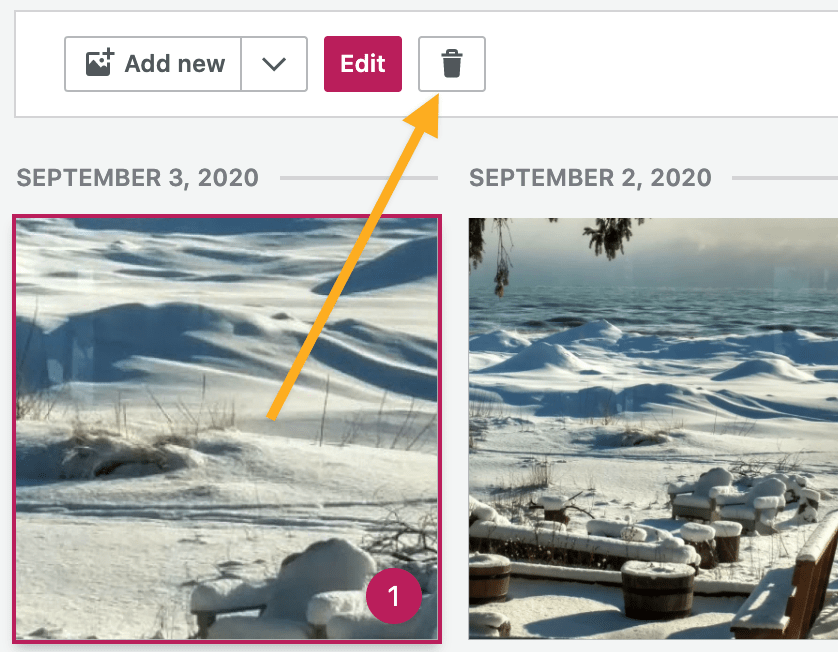
- Click on the file or files you want to delete. A number will appear on all selected files.
- Click the trash icon next to the “Edit” button.
- Confirm that you are sure you want to delete the selected items.

⚠️
Deleted files cannot be recovered. Deleted images, videos, and other media files will no longer appear on your website, including on all posts, pages, and widgets.


