

You can send content (like pages and posts) to the Trash if you no longer want it. This guide will show you how to move content to the trash, restore it from the trash, and delete content permanently.
In this guide
If you want to delete all of the content on your website and start over, visit our guide on how to Reset Your Site.
To delete a piece of content from your site, follow the steps below.
Select the appropriate tab for your admin interface style:
- Visit your site’s dashboard.
- Click on Pages on the left side (or Posts, Portfolio, or Testimonials, depending on which content you wish to delete.)
- Locate the page in the list and click the three dots next to the page’s name.
- Click the “Trash” option to delete the page.
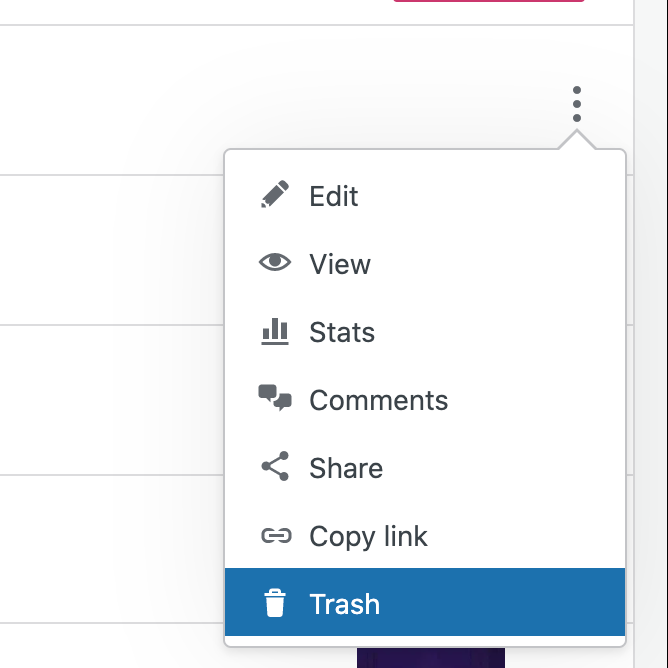
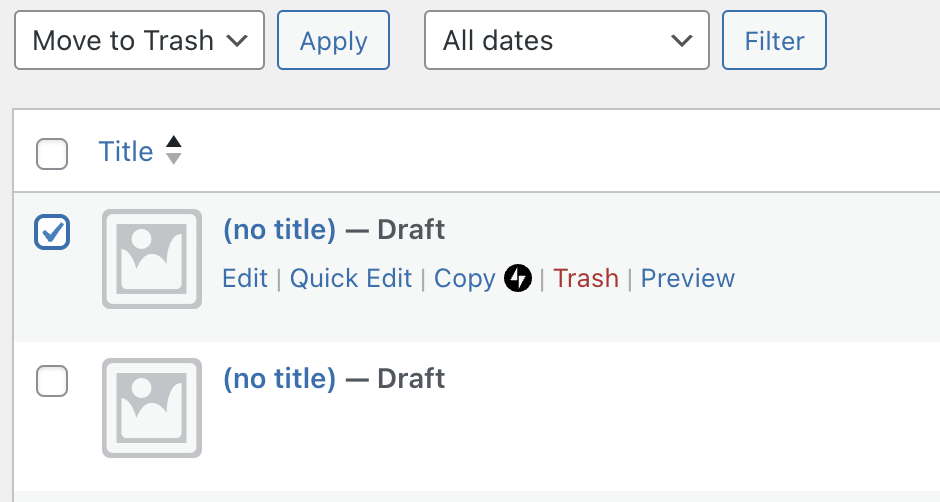
The page or post will remain in the trash for 30 days. After 30 days, it will be permanently deleted. While a page or post is in trash, it cannot be viewed by the public.
Items in the trash can be restored within 30 days of being trashed. Trashed items will automatically be deleted after 30 days. Follow these instructions to restore content from the trash:
Select the appropriate tab for your admin interface style:
- Visit your site’s dashboard.
- Click on Pages on the left side (or Posts, Portfolio, or Testimonials, depending on which content you wish to delete.)
- Click on the “Trashed” tab.
- Locate the page in the list and click the three dots next to the page’s name.
- Click the “Restore” option.
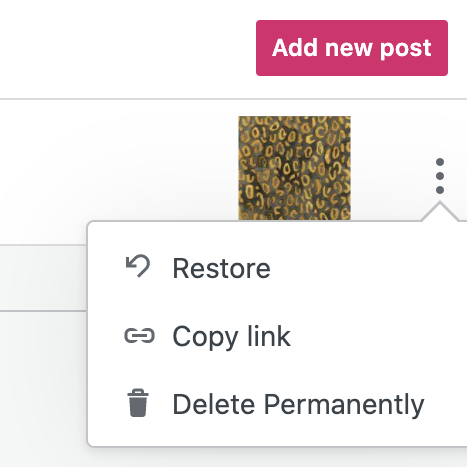

The content will be moved to the Drafts tab, where it will stay indefinitely until you publish or delete it again.
You can erase content from the Trash permanently by following the steps below.
⚠️
Once you choose to permanently delete an item, it cannot be restored!
Select the appropriate tab for your admin interface style:
- Visit your site’s dashboard.
- Click on Pages on the left side (or Posts, Portfolio, or Testimonials, depending on which content you wish to delete.)
- Click on the “Trashed” tab.
- Locate the content in the list and click the three dots next to the page’s name.
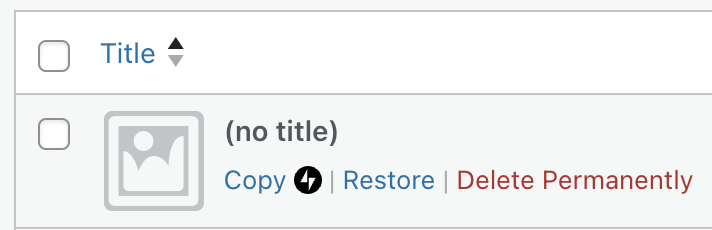
- Click the “Delete Permanently” option.
- Click Ok to confirm.
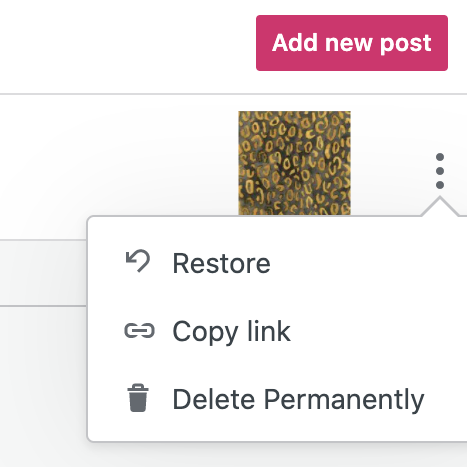
If an item has been permanently deleted from your site by another authorized user, there is no way to recover it. Be careful to assign the proper user role for sites with multiple users.
Items deleted from the trash cannot be restored. If you need to recover a deleted item, here is a tip that may work in some cases.
The Internet Archive is an online library containing billions of snapshots of websites taken since 1996. The archive is accessible via the Wayback Machine which you may be able to use to access past snapshots of a site and recover deleted content.
Visit the Internet Archive Wayback Machine and enter the URL of the deleted post or page (or your website address if you don’t have the exact link). If your site is in the archive, you can see available snapshots sorted by date. Select a snapshot to view your site as it looked on that date.
Note that your site will not be guaranteed to be in the archive. Private sites and sites hidden from search engines will not have any snapshots.


