

The Categories List block displays a list of categories based on your previously published posts by category. This can be handy for readers who want to find more of your posts about certain topics.
In this guide
To add the Categories List block, click on the + Block Inserter icon and search for “categories list”. Click it to add the block to the post or page.
If you have created categories for your posts, they will appear once you insert the block. If you see the message “Your site does not have any posts, so there is nothing to display here at the moment,” we recommend publishing at least one post with a category.
💡
Using your keyboard, you can also type
/categories liston a new line and press enter to quickly add a new Categories List.
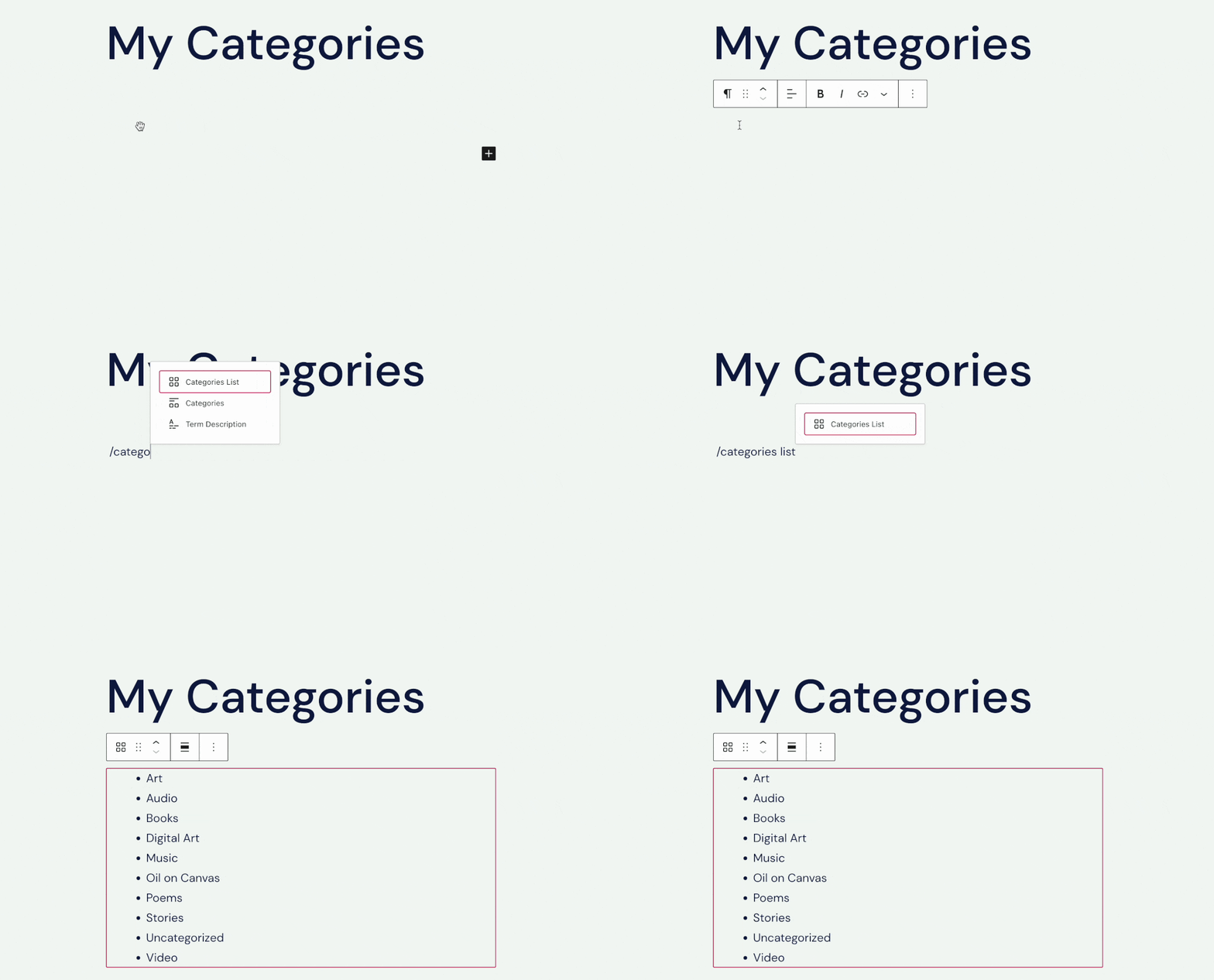
/categories list on a new line.For more information, visit our detailed instructions on adding blocks.
When you click on the block, a toolbar of options will appear above or below it:

The Categories List block has the following options in its toolbar:
- Change block type.
- Drag the block.
- Move the block up or down.
- Change the block’s horizontal alignment or width.
- More options.
When you select a block, you will find additional block settings in the right sidebar. If you do not see the sidebar, you may need to click the Settings icon in the top-right corner to bring up the settings. This icon looks like a square with two uneven columns:
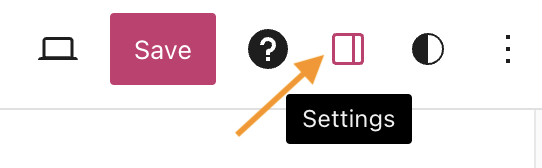
The settings contain several options to control how the list of categories appears on your site. Each setting is explained in more detail below.

Display as dropdown: Choose this option to display the categories in a dropdown menu rather than as a list. This is handy if you want to save space or have a lot of categories:
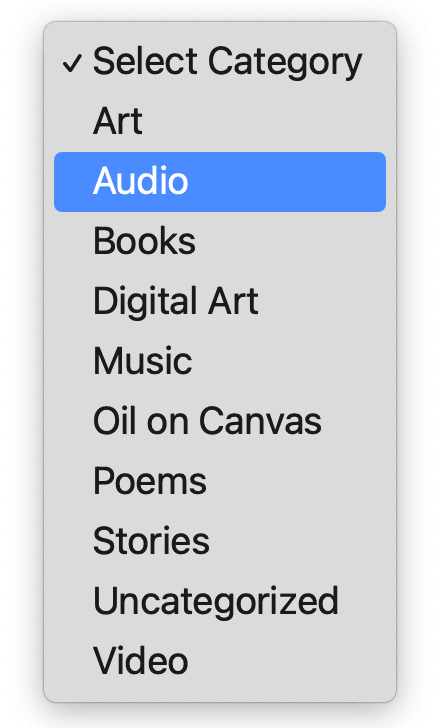
Show post counts: If this option is chosen, the total number of published posts for each category will be displayed next to the category link. You can show post counts in both the list and dropdown display formats.
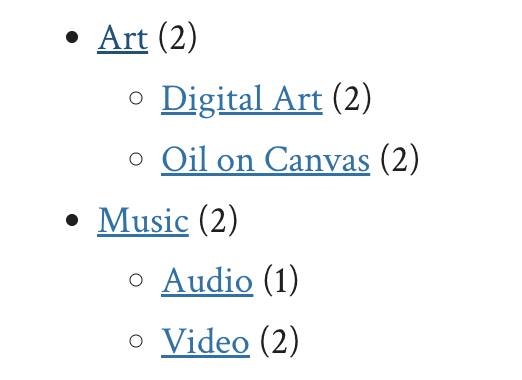
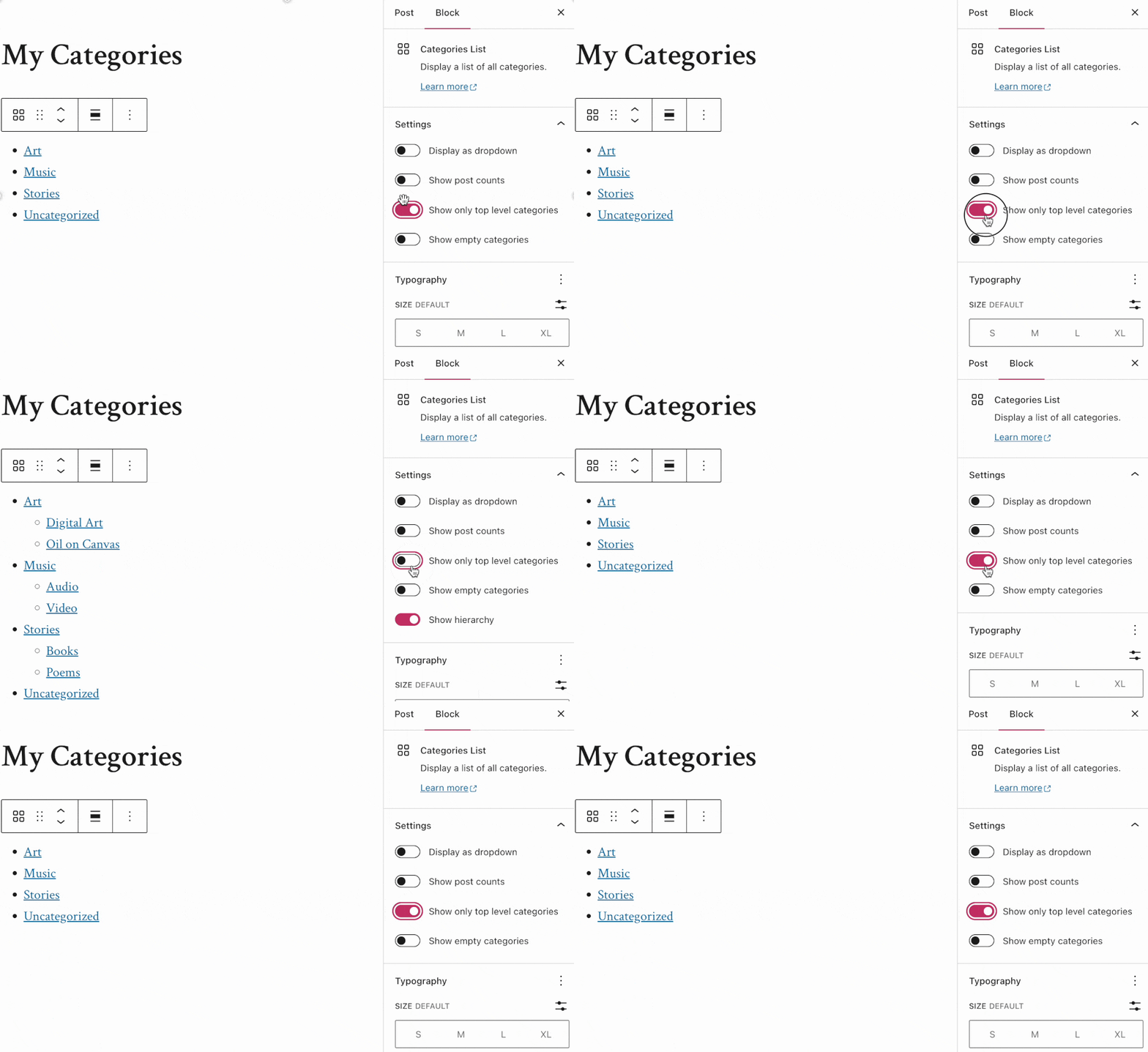
Show only top level categories: If you have subcategories within main categories, you can choose to display only the top-level categories like in this example:
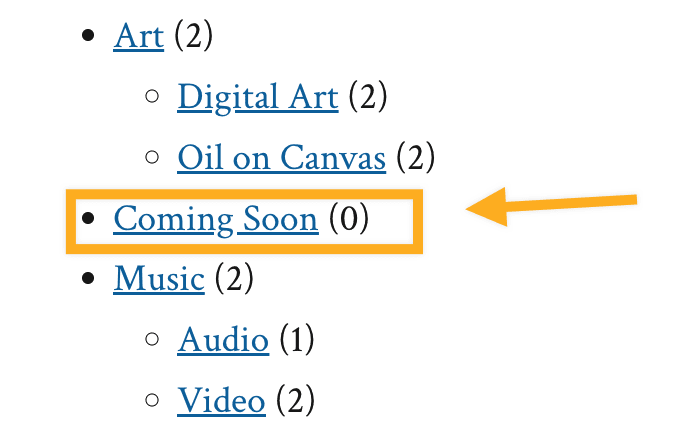
Show empty categories: If you have categories that don’t have associated posts yet, you can choose to display the category or hide it. You can show empty categories in both the list and dropdown display formats.
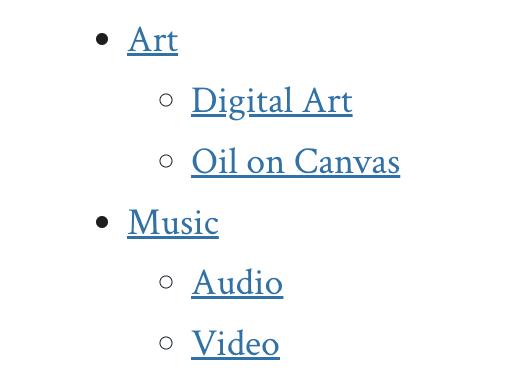
Show hierarchy: If you have parent and child categories (i.e. subcategories within main categories) you can choose to display the hierarchy or leave the list without indicating which subcategories fit inside your main categories. You can show category hierarchies in both the list and dropdown display formats.
The Categories List block also contains Advanced settings.
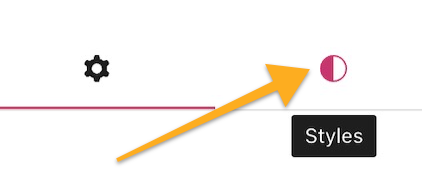
In the block settings sidebar, click on the Styles icon to access the design settings for the block. The Styles icon is in the shape of a circle with half of the circle filled in:
The Categories List block include the following style settings:


