

The Paragraph block is the default block type for text added to the editor. Therefore, it is probably the block you will use most. This guide will show you how to use the Paragraph block for writing text in the WordPress editor.
In this guide
To add a Paragraph block, start typing or pasting some text. Each piece of text will be turned into a Paragraph block automatically:

You can also click the + Block Inserter icon and search for “paragraph”. Click it to add the block to the post or page.

For more information, visit our detailed instructions on adding blocks.
When you click on the block, a toolbar of options will appear above it:

The Paragraph block has the following options in its toolbar:
- Change to another type of block
- Drag block handle to change the block position
- Move the block up or down
- Align the text to the left, center, or right
- AI Assistant
- Make the highlighted text bold
- Make the highlighted text italic
- Insert hyperlink
- Text formatting options
- More block options
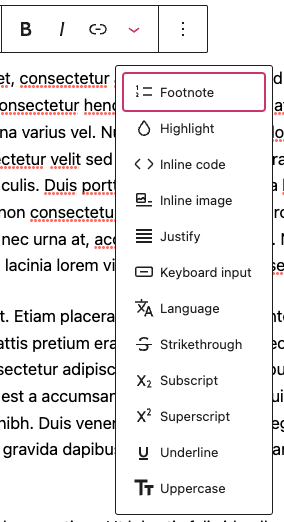
The additional options in the Paragraph block are as follows:
- Footnote
- Highlight
- Inline code
- Inline image
- Justify
- Keyboard input
- Language
- Strikethrough
- Subscript
- Superscript
- Underline
- Uppercase
To use these options to apply formatting to your text:
- Highlight the words or characters you’d like to apply the formatting to.
- Select the desired option from the toolbar to apply it.
Use the Highlight option to change the color of a few specific words or characters, or set a colored background behind specific words or characters in a Paragraph block. To add color to just some words (as opposed to all the text in the block), follow these steps:
- Select the text you’d like to format.
- Click the downward arrow in the block toolbar.
- Click Highlight.
- A small window will pop up with color options for Text and Background. This shows a set of predefined color options to choose from and a color picker where you can choose the specific color you want.
The Inline image option displays an image within the same line as the Paragraph block, although it doesn’t have the same flexibility as using an Image block (the recommended method to display an image.)
To add an inline image to a Paragraph block:
- Click the downward arrow in the block toolbar.
- Choose Inline image.
- Select the image you wish to use from the Media Library window.
- Click the Insert button to add the inline image.

To change the size of an inline image:
- Click on the image.
- Type or select a number for the image width.
- Click the curved arrow button to apply the changes.
Use the Keyboard input option to add the <kbd> HTML tag to selected text.
When you add the <kbd> tag, the content inside it is displayed in the browser’s default monospace font. It is typically used when writing a keyboard command, for example:
To copy the content, highlight it and press CTRL + C on your keyboard.
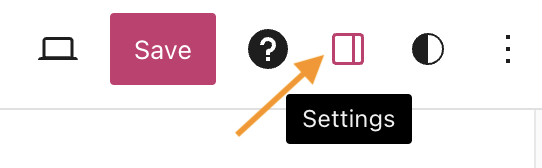
When you select a block, you will find additional block settings in the right sidebar. If you do not see the sidebar, you may need to click the Settings icon in the top-right corner to bring up the settings. This icon looks like a square with two uneven columns:
The Paragraph block includes the following settings to adjust the appearance of all the text in that block:
You can start a new line with single spacing (instead of adding a new Paragraph block) by holding down the Shift key and pressing Return/Enter on your keyboard.
Read Write Text in WordPress for more tips for writing text in WordPress.


