

To quickly embed a Vimeo video, copy the video’s URL from your web browser’s address bar while viewing the video, paste it on a line by itself in your post/page editor, and we take care of the rest!
In this guide

- Go to My Sites → Posts or My Sites → Pages.
- Edit the Page or Post where you want to add the Vimeo video. To create a new post or page, click Add new post or Add new page button.
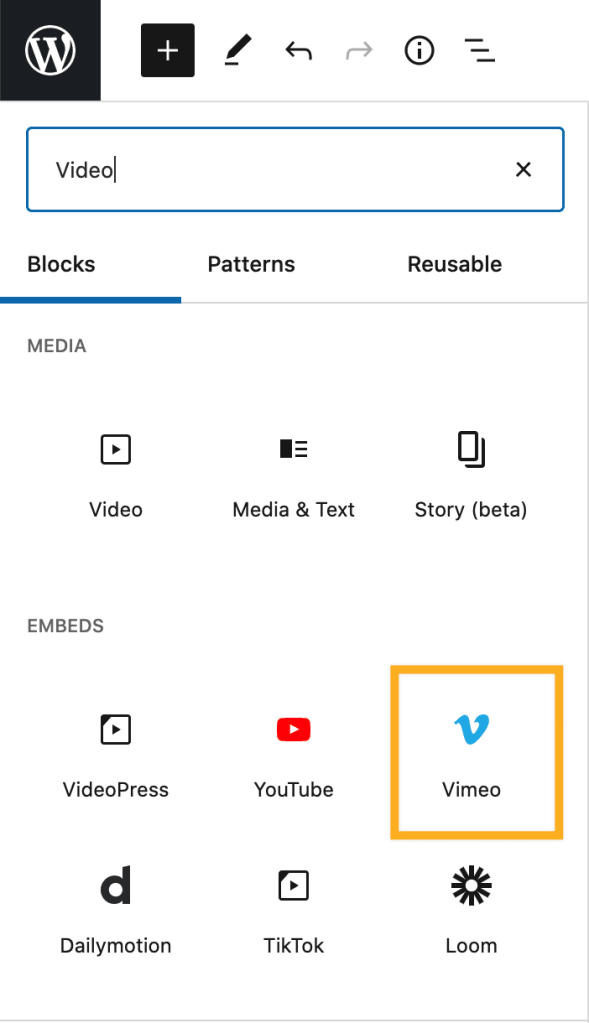
- Click the (+) plus icon to add a new block.
- Search for “video” or “Vimeo” to add the Vimeo block.
- Paste your Vimeo link and click Embed.
Alternately you can paste the Vimeo URL directly into the Block Editor and it will embed the video for you.
If you’d like to specify a particular width and height for the video, you’ll want to create a shortcode. You can add a shortcode to any page or post using a shortcode block.
To create the shortcode, copy the URL or video ID from your web browser’s address bar while viewing the video.

Add the shortcode on a new post or page using one of the following formats. Be sure to replace the URL/video ID listed here with the URL or video ID of your video.
[vimeo https://vimeo.com/44633289] or [vimeo 44633289]
To change the width and height, for example to 500×280, you would use the following shortcode
[vimeo 44633289 w=500&h=280]
which produces a video that looks like this:
- Make sure that your video link is using HTTPS (starts with https://, not http://).
- Make sure that the video has the appropriate privacy settings.
- For more information about troubleshooting Vimeo embed links, take a look at our Troubleshooting Embed Links doc.


